Official Apolo TV Guide: 5 Easy Steps to Apollo Group TV
Published November 18, 2026Updated November 18, 2026By Robert M.
If you searched for apolo tv, you are likely looking for the official Apollo Group TV streaming portal rather than the unrelated Spanish-language media players listed under that spelling on Google Play. Running through five essential checks before downloading software or entering payment details helps you reach the verified platform, confirm device compatibility, and configure streams cleanly.
Quick Answer: The search term “apolo tv” is most commonly a single-“L” spelling variation used by viewers trying to locate Apollo Group TV (apologrouptv.us). While third-party apps named ApoloTv Pro and Apolo TV ONCE exist on the Google Play Store as standalone multimedia or audio-described movie players, the live TV and on-demand IPTV platform associated with Apollo Group TV is managed through its official web portal.
Table of Contents
What Is apolo tv and Where Is the Official Apollo Group TV Portal?
The phrase apolo tv usually refers to Apollo Group TV, an internet protocol television (IPTV) service delivering live channels and video-on-demand (VOD) catalogs over a broadband connection. However, because single-“L” spellings appear on public app marketplaces, verifying which software and web address you are interacting with prevents accidental downloads or account confusion.
How to Separate Apollo Group TV From Unrelated Apolo TV Apps
Live search listings on Google Play show at least two distinct mobile applications spelled with one “L” that are unrelated to Apollo Group TV’s subscription service. ApoloTv Pro is an independent Android multimedia player listed by a separate developer, while Apolo TV ONCE is an audio-described film and series player built for accessibility catalogs.
Neither of those Google Play listings functions as the official account portal for Apollo Group TV. If your goal is to manage an Apollo Group TV subscription, retrieve an M3U playlist URL, or review channel packages, always start at the verified web domain rather than installing lookalike store apps.
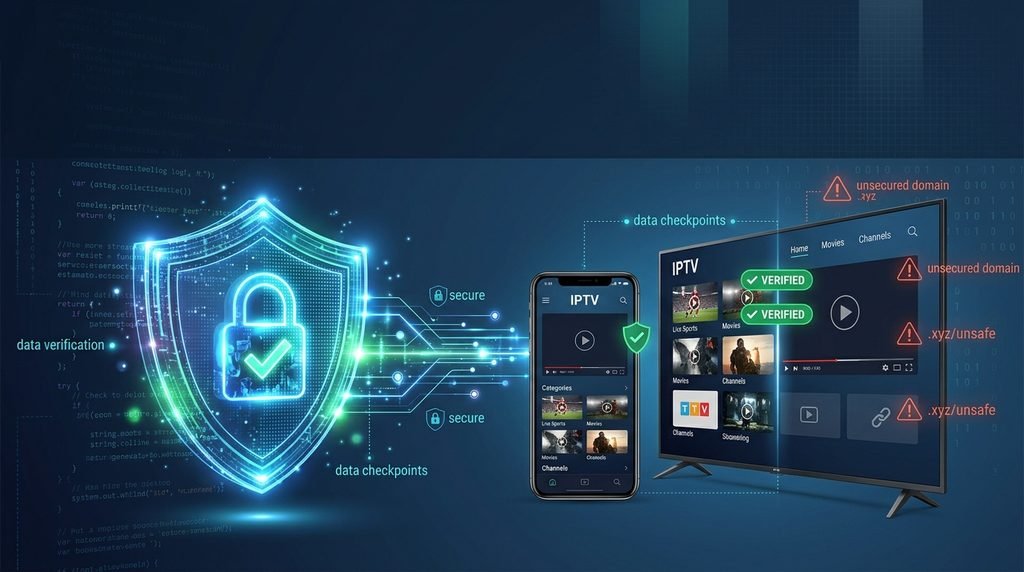
Lookalike Domains vs. the Official apologrouptv.us Portal
Several third-party and lookalike websites—such as apollogroup.cc, apollogrouptvs.com, and apollogroups.tv—circulate in search results using similar branding. For readers seeking the intended official destination covered in this guide, confirm that your browser address bar displays apologrouptv.us before creating an account or submitting login credentials.
Hypothetical Scenario (Domain Verification): Imagine a viewer searches on a mobile phone, taps a similarly spelled domain by mistake, and enters existing login credentials. Checking the exact .us domain and bookmarking the login page first eliminates credential phishing risks and ensures your support tickets reach the right desk.
What Are the 5 Essential Checks Before Setting Up Apollo Group TV?
Completing five practical verification checks before installing any player saves time and prevents playback errors on living-room streaming hardware. Each check below addresses a specific technical, financial, or security requirement identified in our desk research as of November 2026.
Check #
Verification Area
Target Benchmark or Standard
Where to Verify
1
Device & OS Support
Fire OS, Android TV / Google TV, iOS, Smart TV, Windows/Mac
Device Settings > About / System Info
2
Download Bandwidth
Minimum 5 Mbps for HD; 15–25+ Mbps per stream for 4K UHD
Device browser speed test on 5 GHz Wi-Fi or Ethernet
3
Plan & Device Slots
Confirm simultaneous connection limits and billing cycle
Scoped “Install Unknown Apps” toggle enabled only when sideloading
Fire TV Developer Options or Android Special App Access
5
Legal & Network Hygiene
Licensed content verification, HTTPS connections, and router security
Local copyright guidelines & ISP router settings
Check 1: Verify Your Hardware and Operating System Compatibility
Apollo Group TV works across Amazon Firestick, Fire TV Cube, Android TV boxes, Google TV dongles, Apple iOS devices, select Samsung and LG Smart TVs, and Windows or macOS computers. However, installation workflows differ significantly depending on whether your device runs an open Android-based OS or a locked smart TV platform.
Check your device’s operating system version before starting. Newer Amazon streaming devices running proprietary Vega OS restrict traditional Android APK sideloading compared to standard Fire OS models, so confirming your hardware generation avoids dead-end setup steps.
Check 2: Confirm Your Download Bandwidth and Connection Stability
Live IPTV streams require consistent throughput rather than brief bursts of speed because live broadcasts cannot pre-buffer an entire movie minutes in advance. According to Netflix Help Center bandwidth benchmarks, streaming a single High Definition (1080p) feed requires at least 5 Mbps, while Ultra HD (4K) streams require 15 Mbps to 25 Mbps per active screen.
If multiple household members stream simultaneously or game online, plan for at least 30% extra bandwidth headroom above those minimums. Run a speed test directly on your television or streaming stick rather than a phone standing next to the router, as built-in TV Wi-Fi chips often receive weaker signals.
Check 3: Review Official Plans, Device Limits, and Trial Terms
Before activating a subscription, check how many concurrent streams your household needs so family members do not accidentally lock each other out during peak evening hours. You can compare current monthly and annual tiers directly on the Apollo Group TV pricing plans page.
Review the available Apollo Group TV channel lineup beforehand to verify that your preferred regional networks, sports broadcasts, or on-demand categories are included. Whenever a trial option is offered, test your local ISP routing during prime-time sports windows before committing to a multi-month package.
Check 4: Understand Android and Fire TV Sideloading Permissions
Because many IPTV client applications are installed outside default app storefronts, Android and Fire OS require explicit user permission to install third-party APK packages. On modern Android systems, Google Pixel and Android Help documentation notes that enabling “Install unknown apps” grants a specific browser or downloader utility permission to install external packages—and recommends turning that toggle back off once installation finishes.
Never grant unknown-source permissions globally or download APK files from unverified file-sharing forums. Keep installations restricted to official player apps such as Startup Show or verified packages referenced inside your account dashboard.
Check 5: Verify Copyright Rules and Network Privacy Practices
IPTV technology itself is simply a neutral method of delivering video over IP networks, used by major telecommunications providers and independent streaming platforms alike. However, content licensing rules vary by jurisdiction, and viewers are responsible for ensuring that the channels and on-demand streams they access comply with local copyright laws in the United States or their country of residence.
From a network security standpoint, make sure your home router firmware is updated and avoid sharing your M3U playlist URL or login credentials publicly. An M3U link acts like a direct key to your active stream slots, so treating it like a password protects your account from unauthorized use.
Key Takeaway: Confirming your device OS, testing real on-device download speed, and bookmarking apologrouptv.us before installing any app prevents the vast majority of setup and billing mistakes.
How Do You Set Up Apollo Group TV Across Supported Devices?
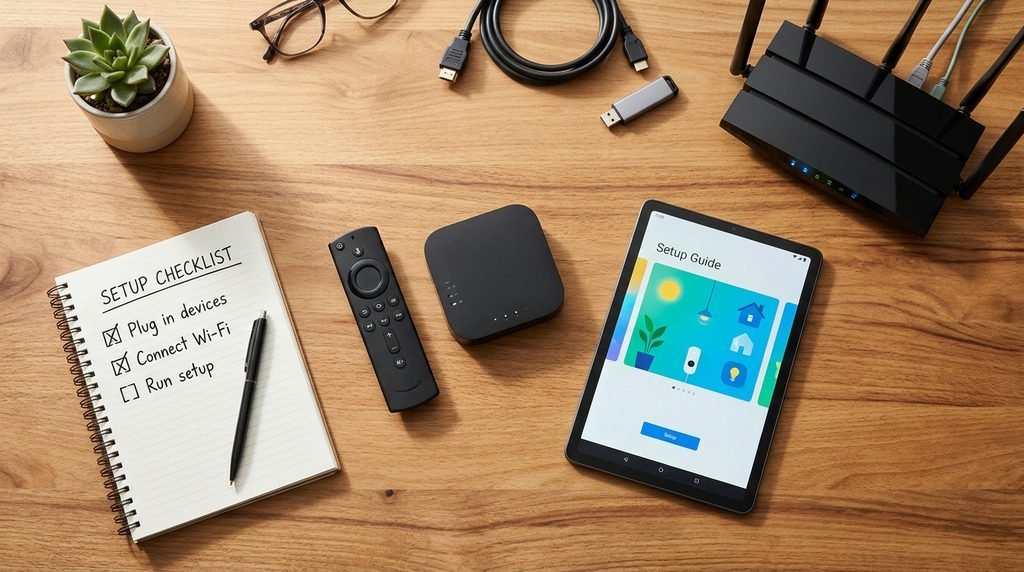
Setting up Apollo Group TV follows three main pathways depending on your streaming hardware: sideloading via Downloader on Fire TV, installing a compatible player from the Google Play or Apple App Store, or loading an M3U playlist on a Smart TV or desktop player. Follow the workflow for your specific hardware below.
Method 1: Amazon Fire TV and Firestick Installation Steps
Fire OS devices use Amazon’s Appstore, which requires enabling Developer Options and using the Downloader app to fetch external packages.
Install Downloader: From your Fire TV home screen, open the Find search bar, type Downloader, and install the official orange utility app.
Unlock Developer Options: Navigate to Settings > My Fire TV > About, highlight your Fire TV device name, and press the center Select button seven times until the screen states you are a developer.
Grant App Permission: Press Back, open Developer Options > Install Unknown Apps, select Downloader, and switch its permission to ON.
Download and Sign In: Launch Downloader, enter the official app code or APK URL provided in your Apollo Group TV installation guide, complete the installation, and sign in with your active credentials.
For security hygiene, return to Install Unknown Apps after setup completes and toggle Downloader’s permission back to OFF until you need to install a future update.
Method 2: Android TV, Google TV, and Mobile Configuration
Android TV boxes, NVIDIA Shield devices, Google TV streamers, and Android smartphones support both official store players and direct APK installation.
Search the Play Store: Open the Google Play Store on your Android device and search for Startup Show (a compatible media player used with Apollo Group TV playlists).
Install and Launch: Select Install, wait for the download to finish, and open the application.
Sync the EPG: Allow 30 to 60 seconds for the Electronic Program Guide (EPG) and live channel categories to finish populating before selecting a stream.
If you choose to sideload the standalone Android APK instead, enable Install unknown apps for your browser inside Settings > Apps > Special app access, install the package, and disable the permission afterward.
Method 3: Apple iOS, Smart TVs, and Desktop Media Players
Non-Android platforms rely on native media players that accept M3U playlist links rather than Android APK files.
iPhone and iPad (iOS/iPadOS): Download Startup Show or GSE Smart IPTV from the Apple App Store, choose Add Playlist via M3U URL, and paste your account link.
Samsung and LG Smart TVs: Open the Samsung App Store or LG Content Store, install a compatible IPTV player such as IPTV Smarters Pro or iboProApp, and pair your TV’s displayed MAC address with your M3U playlist URL.
Windows PC and Mac: Install VLC Media Player, click Media > Open Network Stream, paste your M3U URL, and press Play.
How Can You Fix Common Streaming and Installation Issues?
Most playback interruptions and installation blocks trace back to local Wi-Fi interference, full app caches, or outdated OS security prompts rather than server outages. Use the diagnostic steps below to isolate and resolve common issues quickly.
Resolving Buffering and Frame Drops During Live Broadcasts
When a live broadcast freezes or drops resolution while your phone browses normally, your streaming device is usually experiencing packet loss or buffer starvation.
Switch to 5 GHz Wi-Fi or Ethernet: The 2.4 GHz Wi-Fi band suffers heavy interference from neighboring routers and household appliances; moving your streaming stick to a 5 GHz band or wired Ethernet adapter stabilizes throughput.
Increase Player Buffer Size: Open your media player’s playback settings and raise the buffer length to 10–15 seconds so minor network dips do not pause live video.
Clear Accumulated App Cache: Navigate to Settings > Applications > Manage Installed Applications, select your streaming app, and choose Clear Cache (avoiding Clear Data unless you want to re-enter your login credentials).
Fixing App Not Installed and Playlist Login Errors
According to Google Android Help troubleshooting guidance, an “App not installed” message typically stems from a signature conflict with an older version, low storage space, or an active Play Protect scan block.
Remove Older Builds First: Uninstall any previous version of the app before installing a newer APK so package signatures do not clash.
Free Up Local Storage: Streaming sticks often ship with 8 GB of total storage; keep at least 500 MB free so the OS can unpack installation archives cleanly.
Check M3U Formatting and Active Slots: If a playlist fails to load, check for accidental spaces at the beginning or end of your M3U URL and confirm that another device in your home is not occupying your last simultaneous stream slot.
Editorial Trust, Methodology & Limitations
Byline: Editorial Technical Desk, Apollo Group TV (apologrouptv.us)
Last Updated: November 18, 2026
Methodology: This guide was compiled through desk research and verification of live search engine results (November 2026), official Google Android and Fire TV permission documentation, published broadband streaming benchmarks, and canonical documentation on apologrouptv.us.
Disclosure & Limitations: No proprietary hands-on speed tests, uptime measurements, or device lab benchmarks were conducted for this article; all bandwidth thresholds cited are grounded in third-party industry standards. Third-party app stores and streaming device manufacturers frequently update OS sideloading policies, which may alter menu labels on specific hardware models.
Yes, most viewers searching for “apolo tv” are looking for Apollo Group TV (apologrouptv.us). However, two unrelated Android applications named ApoloTv Pro and Apolo TV ONCE also appear on Google Play, so always verify you are on apologrouptv.us before signing in.
Which devices can run Apollo Group TV?
Apollo Group TV supports Amazon Fire TV and Firestick, Android TV and Google TV boxes, Android smartphones, Apple iOS devices, select Samsung and LG Smart TVs, and Windows or Mac computers using compatible media players such as Startup Show or VLC.
What internet speed do I need for smooth streaming?
You need at least 5 Mbps of sustained download speed for a single 1080p HD stream and 15 to 25 Mbps per screen for 4K Ultra HD playback. Households streaming on multiple screens simultaneously should maintain at least 30% extra bandwidth headroom.
Why does Firestick ask me to enable Install Unknown Apps?
Because third-party APK packages are installed outside the Amazon Appstore, Fire OS requires you to grant explicit installation permission to the Downloader utility. For optimal security, toggle that permission back off after installation finishes.
How do I fix buffering on live channels?
Connect your streaming device to a 5 GHz Wi-Fi network or wired Ethernet adapter, clear the player app’s cache in device settings, and increase the playback buffer length to 10–15 seconds. Also verify that no background downloads are saturating your home connection.
What should I do if my M3U playlist link will not load?
Check that the M3U URL was copied completely without extra spaces at the start or end, verify your internet connection, and confirm that your subscription is active and within its simultaneous device limit.
Next Step
If you are ready to verify compatible packages or check multi-device options before installing a player on your streaming hardware, visit the official Apollo Group TV pricing and plans page to review current connection tiers and trial availability.
Martin M.
Streaming technology expert, IPTV enthusiast, and senior digital content publisher. Dedicated to providing in-depth guides, reviews, and insights on global live TV and VOD entertainment platforms.