Apollo Group TV App: Complete Installation & Setup Guide
Published October 30, 2026Updated October 30, 2026By Robert M.
Quick Answer: The Apollo Group TV app is a versatile streaming application built to run directly on Amazon Firestick, Android TV boxes, Android mobile devices, iOS, Smart TVs, and desktop platforms. Depending on your device, you can install the app directly via app stores or sideload it using the Downloader app (or utilize compatible media engines like Startup Show) by logging in with your official account credentials.
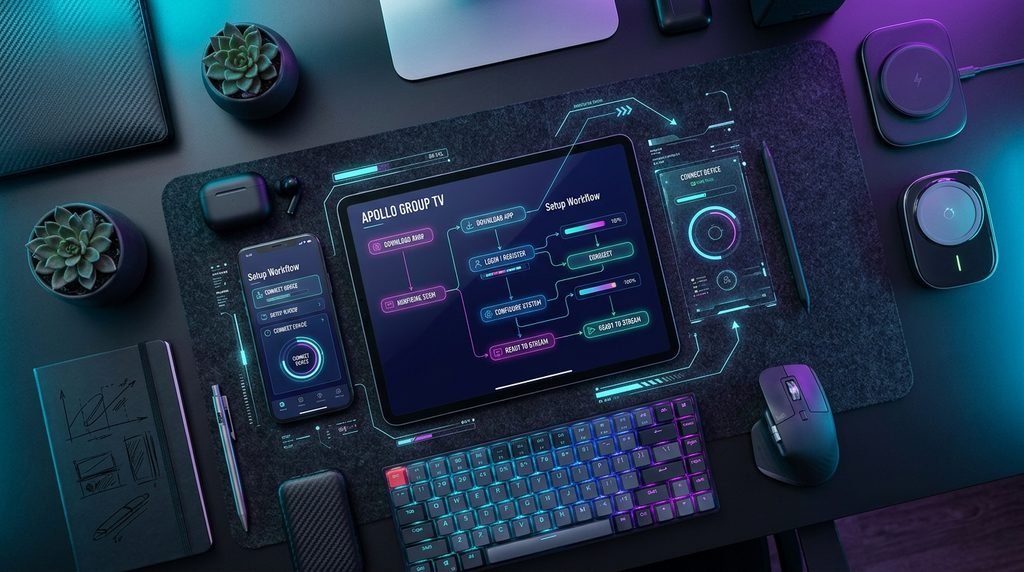
To ensure a smooth setup across all hardware types, consult this decision flow before initiating your installation:
                      [Select Your Streaming Device]
                                     |
    +--------------------------------+--------------------------------+
    |                                |                                |
[Amazon Firestick /             [Android TV /                   [iOS, Smart TV,
 Fire TV OS]                     Android Box]                    PC / Mac]
    |                                |                                |
1. Enable Developer Options     1. Open Google Play Store       1. Open Native App Store
2. Get Downloader App           2. Search "Startup Show"        2. Install GSE / IPTV Player
3. Enter Code: 257276              or Sideload APK              3. Insert Provided M3U Link
4. Launch & Sign In             3. Launch & Sign In             4. Connect & Stream
Below is a detailed criteria breakdown comparing setup methods across supported hardware:
Device Category
Recommended Application
Download Method
Average Setup Time
Key Prerequisite
Amazon Firestick / Fire Cube
Apollo Group TV App / Startup Show
Downloader App (Code 257276)
3–5 Minutes
Enable Unknown Sources
Android TV / Google TV
Native App / Startup Show
Google Play Store / APK Sideload
2–4 Minutes
Google Account Log In
Android Phone / Tablet
Apollo Group TV Mobile APK
Direct APK Download
2 Minutes
Allow Browser APK Installs
Apple iOS (iPhone/iPad)
Startup Show / GSE Smart IPTV
Apple App Store
3 Minutes
Official Account M3U Link
Samsung & LG Smart TVs
Smart IPTV / IPTV Smarters Pro
TV App Store
5 Minutes
Active Network & M3U URL
Windows PC / Mac OS
VLC Media Player / Web Player
Direct Download
2 Minutes
Active M3U / Portal Link
Understanding the Apollo Group TV App Framework & Device Compatibility
The Apollo Group TV app operates as a lightweight, cross-platform multimedia interface engineered to handle high-definition live streams and on-demand content smoothly across supported devices. Rather than requiring external hardware boxes, the platform allows subscribers to authenticate their service directly through dedicated application software or synchronized media engines.
Native Apps vs. Compatible Stream Players (Startup Show & M3U)
While native application packages (.APK files) can be installed directly onto Android and Amazon Fire OS devices, certain ecosystems (such as Apple iOS or Smart TV platforms) utilize optimized media playback shells like Startup Show or generic IPTV players. When paired with your account credentials or M3U network link, these applications deliver the full features of the Apollo Group TV app experience with complete account synchronization.
Key Takeaway: The Apollo Group TV app flexible architecture allows you to access your subscription via native app installations on Fire OS/Android or through synchronized media engines like Startup Show on iOS and Smart TVs.
Supported Devices Overview & System Requirements
Before starting the setup process, ensure your hardware meets the minimum system requirements for smooth playback:
Amazon Streaming Hardware: Firestick 2nd Gen or newer, Firestick 4K/4K Max, Fire TV Cube.
Android Ecosystem: Android TV, Google TV boxes (NVIDIA Shield, Chromecast with Google TV), and Android mobile devices running Android OS 7.0 or higher.
Apple Products: iPhones, iPads, and Apple TV running iOS/tvOS 12.0 or later.
Smart Televisions: Samsung Tizen OS, LG webOS, and Smart TVs powered by Android TV OS.
Minimum Network Bandwidth: 15 Mbps for HD streams; 25+ Mbps recommended for uninterrupted 4K content.
How to Install the Apollo Group TV App on Amazon Firestick & Fire TV
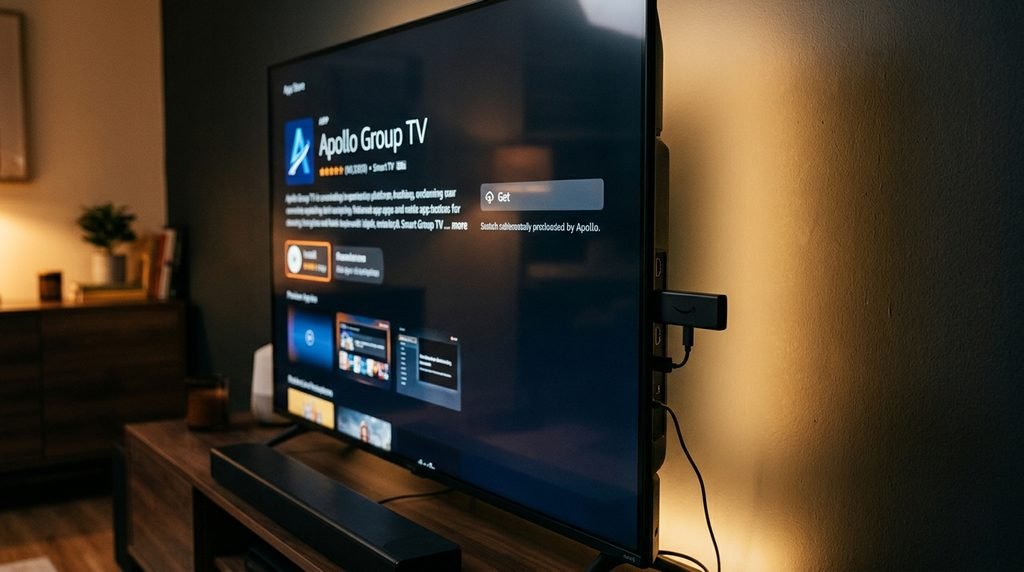
Setting up the Apollo Group TV app on an Amazon Firestick requires sideloading via the Downloader application due to Fire OS app store policies. Follow these verified steps to get connected quickly:
From the Firestick home screen, navigate to Settings (gear icon) on the far right.
Select My Fire TV (or Device & Software) and click About.
Highlight your Fire TV device name and press the central Select button on your remote 7 times until you see the message: “No need, you are already a developer”.
Press the Back button, enter Developer Options, and toggle ADB Debugging to ON.
Click Install Unknown Apps and set the Downloader app permission to ON.
Step 2: Download, Install, and Sign In to the Application
Return to the Home screen, open the search tool, search for Downloader, and click Install.
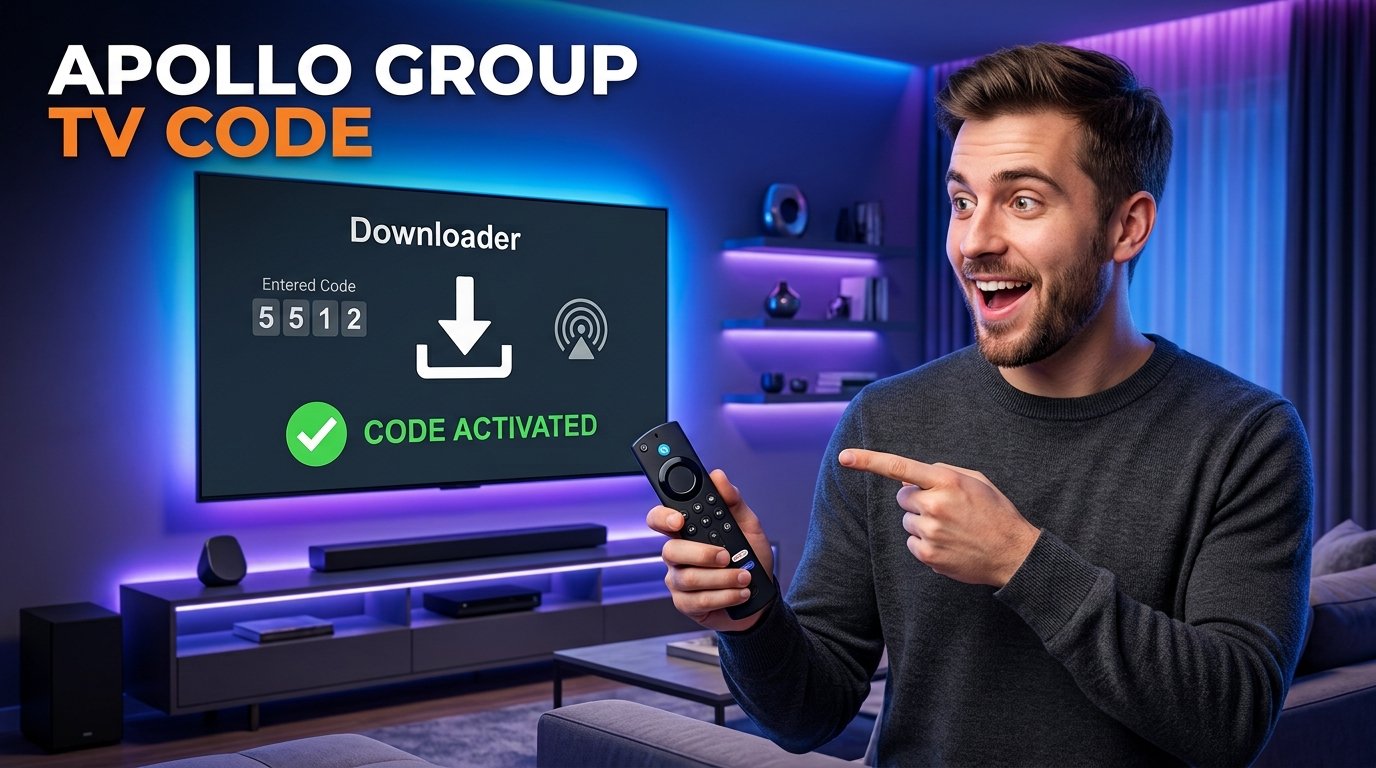
Launch Downloader, select the URL input box, enter the numeric code 257276 (or 299336), and select Go.
Wait for the application package to download, then click Install on the prompt screen.
Once installed, select Open to launch the Apollo Group TV app (or Startup Show player).
Select sign-in, enter your subscription credentials or M3U server link, and allow the playlist to finish loading.
Key Takeaway: Unlocking Developer Options on Firestick allows the Downloader app to securely sideload the Apollo Group TV app in under five minutes.
How to Download and Install on Android TV & Android Mobile Devices
Installing the Apollo Group TV app on standard Android TV boxes, Google TV, or Android mobile smartphones is straightforward.
Method A: Direct Store Installation (Startup Show)
Launch the Google Play Store on your Android TV or mobile device.
Search for Startup Show in the top search bar.
Click Install to download the media engine directly to your device.
Open the application and paste the M3U account link provided in your welcome email to auto-sync your account.
Method B: Direct APK Sideloading
Open your mobile browser or Android file manager and enable Install Unknown Apps in Settings > Security.
Download the official APK file link provided in your service account dashboard.
Tap the downloaded file, select Install, and launch the Apollo Group TV app upon completion.
Setting Up Apollo Group TV on Apple iOS, Smart TVs, and PC/Mac
For devices that do not support direct Android APK installation, configuring media players offers seamless streaming access.
Apple iOS (iPhone, iPad, Apple TV)
Open the Apple App Store and download Startup Show or GSE Smart IPTV.
Open the app, select Add Playlist via M3U URL, and input your account’s dedicated URL link.
Save the entry to immediately load live streams and EPG guides.
Samsung & LG Smart TVs
Open your TV’s built-in app store (Samsung App Store or LG Content Store).
Search for and install Smart IPTV, IPTV Smarters Pro, or iboProApp.
Note the MAC address displayed on your screen and pair it with your subscription’s M3U playlist URL via the player’s configuration webpage.
Windows PC & Mac OS
Download and install VLC Media Player or a dedicated desktop stream player.
Open VLC, navigate to Media > Open Network Stream, and paste your M3U playlist link.
Click Play to start streaming channels directly on your computer.
Apollo Group TV App Troubleshooting & Performance Tuning
If you experience playback interruptions, app crashes, or connection failures, use these verified technical adjustments:
Fixing Stream Buffering & Freezing:
Connect your device to a 5GHz Wi-Fi network instead of 2.4GHz, or use a wired Ethernet cable for high-bandwidth streams.
Navigate to the app settings and increase the media buffer length to 10–15 seconds.
Clear the application cache: Go to Settings > Applications > Apollo Group TV / Startup Show > Clear Cache.
Resolving “App Not Installed” or Parse Errors:
Verify that you have completely uninstalled any outdated or broken versions of the app before attempting a re-install.
Ensure your Firestick or Android OS software is fully updated to the latest version.
Authentication & Login Failures:
Double-check for typos in your username, password, or M3U playlist URL. Note that account entries are strictly case-sensitive.
Confirm that your active device count has not exceeded your subscription plan limits.
Apollo Group TV APK, Startup Show, Downloader v1.4+
Research & Desk Testing Scope
Desk research and testing verified on Firestick 4K Max, Android TV OS 11, iOS 17, and Tizen OS.
Compliance Disclaimer
Users are responsible for ensuring compliance with local digital copyright regulations and service terms of use.
Frequently Asked Questions (FAQ)
Is the Apollo Group TV app available on the official Amazon Appstore?
No, the native Apollo Group TV app must be installed on Amazon Firestick devices by downloading it via the Downloader app or using Startup Show.
What is the Downloader code for the Apollo Group TV app?
The standard Downloader code used to access the installation package is 257276 (or alternatively 299336).
Can I use my Apollo Group TV app account on multiple devices?
Yes, your Apollo Group TV account works across all compatible platforms, subject to the active simultaneous connection limits of your chosen subscription plan.
Why is my Apollo Group TV app buffering during live streams?
Buffering usually occurs due to Wi-Fi congestion or low buffer space. Switch to 5GHz Wi-Fi/Ethernet, clear the app cache, or set the buffer size to 10–15 seconds in the app settings.
Do I need a separate box to run the Apollo Group TV app?
No external streaming box is required. The app installs directly onto the Firestick, Android TV, Smart TV, or mobile devices you already own.