Apollo Group TV Buffering: 9 Proven Fixes for 2026
Published September 8, 2026Updated September 8, 2026By Robert M.
Table of Contents
Apollo Group TV buffering can turn a good streaming setup into a frustrating experience, especially when a live sports event or favorite channel keeps freezing every few seconds. The important thing to understand is that buffering does not automatically mean Apollo Group TV itself is down. The problem can come from your internet connection, Wi-Fi signal, Firestick performance, streaming application, one specific channel, network routing, or a temporary service-side issue.
The fastest way to fix Apollo Group TV buffering is therefore not to start deleting apps, changing DNS servers, installing VPNs, and resetting the Firestick all at once. Instead, test the problem in a controlled order. Determine whether every channel buffers, whether other streaming apps work, whether the issue happens on another device, and whether changing networks makes any difference. Those tests quickly tell you which part of the setup deserves attention.
This guide walks through nine practical Apollo Group TV buffering fixes for Firestick, Android TV, Smart TVs, phones, and other devices. It also explains how to identify whether the problem comes from Wi-Fi, the streaming device, the application, your subscription, or an individual stream, so you can fix the real cause instead of repeatedly reinstalling everything.
Quick Answer: How to Fix Apollo Group TV Buffering
If Apollo Group TV buffering starts suddenly, begin with the simplest checks. Test several different channels, restart the streaming application, restart your Firestick or television, reboot the router, and compare another streaming service on the same device. Those steps solve a surprising number of temporary playback problems.
If Apollo Group TV buffering continues, test the same subscription on another device or network. For example, try the service on your phone or temporarily connect your Firestick to another connection. If playback improves dramatically, your original device or home network is probably involved.
You should only move to advanced changes such as DNS adjustments, VPN testing, full app reinstalls, or factory resets after the basic tests fail. Changing too many settings at once makes Apollo Group TV buffering harder to diagnose because you no longer know which change helped or made the problem worse.
Why Does Apollo Group TV Keep Buffering?
Apollo Group TV buffering occurs when the application cannot receive or process streaming data consistently enough to continue playback. Your video player stores a small amount of content ahead of what you are watching. When that temporary buffer runs out before new data arrives, playback pauses while the player waits.
Several different things can cause this:
Weak Wi-Fi near the television.
Unstable internet rather than simply slow internet.
Heavy network activity elsewhere in the home.
Limited Firestick memory or storage.
An overloaded or malfunctioning streaming application.
One problematic channel or stream.
Temporary connection problems between networks.
Account or application configuration issues.
VPN routing that makes the connection slower.
Temporary service-side availability problems.
That is why Apollo Group TV buffering should be diagnosed rather than guessed at. The exact same spinning circle can represent very different technical problems.
1. Test More Than One Channel
The first Apollo Group TV buffering test takes less than a minute: change channels.
If one particular channel buffers while several others play normally, your internet connection and Firestick may be perfectly fine. The problem could be limited to that individual stream. Reinstalling the application or restarting your entire router because one channel has difficulty will probably accomplish nothing.
Test at least five channels from different categories. You can use the Apollo Group TV channel list to choose a mix of news, entertainment, sports, and other content instead of testing several channels from the same group. Pay attention to the pattern:
What You See
What It Suggests
One channel buffers
Possibly stream-specific
One category buffers
Could be source/category-related
All live channels buffer
Network, app, account, or broader issue
Live TV buffers but VOD works
Live-stream path may be involved
Everything buffers
Network/device/app deserves attention
Other streaming apps also buffer
Local network is likely involved
This simple test is one of the best ways to narrow down Apollo Group TV buffering before changing anything.
2. Restart the Streaming Application
Applications can become unstable after running for long periods. Cached data, memory usage, or a temporary connection error can cause Apollo Group TV buffering even when the internet itself is fine. Close the streaming application completely instead of simply returning to the Fire TV home screen and immediately reopening it. On Firestick, you can force stop the app through the application settings if necessary. Then reopen it and test the same channels again.
If Apollo Group TV buffering disappears after restarting the application, you probably encountered a temporary software or memory problem rather than a permanent network issue. Do not immediately clear all application data. Clearing data can remove saved login details and configuration, while a normal restart or cache cleanup may be enough.
Clear Cache Before Clearing Data
If the application has become unusually slow, clearing its cache can sometimes help. Cache is temporary information stored to improve performance, but corrupted or excessive cached data can occasionally cause problems. However, “Clear Cache” and “Clear Data” are different options. Clearing data may reset the application entirely and force you to enter your streaming credentials again. For Apollo Group TV buffering, try force stopping the app and clearing cache before considering a full data reset.
3. Restart Your Firestick or Streaming Device
A Firestick has limited memory compared with a computer or modern smartphone. If several applications have been running, the device can become sluggish and struggle with streaming playback. Restart the Firestick rather than merely putting it into sleep mode. A proper restart clears temporary memory and reloads Fire OS, which can resolve Apollo Group TV buffering caused by a temporary device problem.
After restart, open only the streaming application and test playback before opening other apps. This gives you a cleaner performance test. The same approach applies to Android TV boxes, Google TV devices, Smart TVs, and other streaming hardware. A device restart is simple, safe, and should happen before more aggressive troubleshooting.
4. Restart Your Router and Internet Connection
Your internet can appear connected while still experiencing packet loss, unstable routing, or brief interruptions that are enough to cause Apollo Group TV buffering. Restart your modem and router. Disconnect power, wait briefly, reconnect them, and allow the network to fully return before testing the television again.
Do not judge the connection solely by whether websites load. Normal websites use small bursts of data, while live streaming requires a consistent flow over time. A connection that feels fine while browsing can still produce constant buffering. After restarting the network, test another streaming app on the exact same Firestick or TV. If Netflix, YouTube, or another legitimate streaming platform also struggles, Apollo Group TV buffering is probably not your only problem.
Speed Is Not the Whole Story
Users often focus entirely on advertised internet speed. A fast package helps, but stability matters just as much. A connection that repeatedly drops for half a second can be worse for live television than a slower but stable connection. Instead of asking only “How many Mbps do I have?”, pay attention to whether the connection remains consistent.
Apollo Group TV buffering that happens randomly despite apparently high speed can sometimes be caused by Wi-Fi instability rather than insufficient bandwidth.
5. Check Your Firestick Wi-Fi Signal
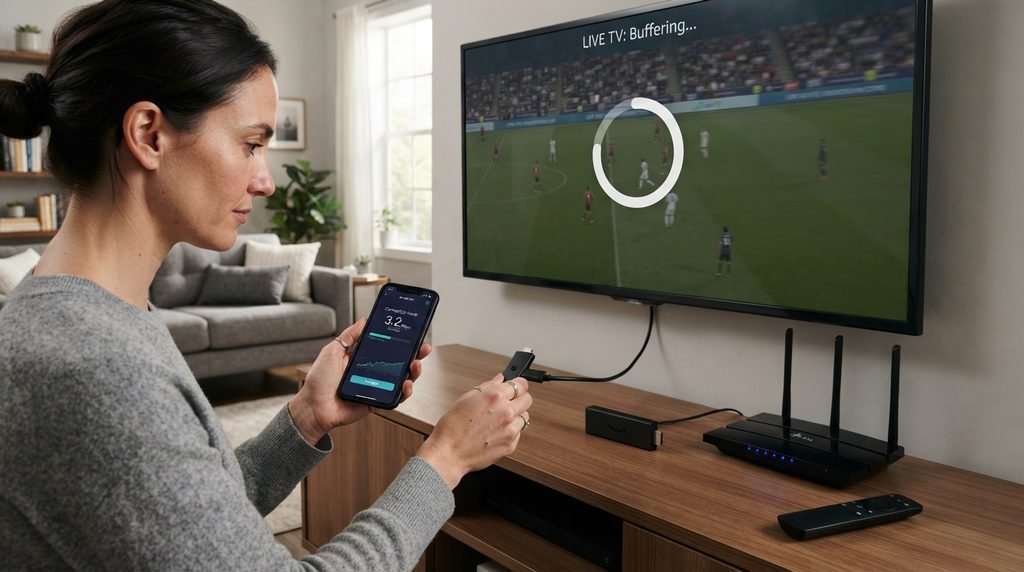
Firesticks are often positioned directly behind the television, which is not always the best place for Wi-Fi reception. The television, wall placement, distance from the router, and nearby electronics can all affect signal quality. If Apollo Group TV buffering happens mainly on your Firestick while the same account works well on a phone or another television, investigate the Firestick connection.
Try moving the router closer if practical. If your Firestick came with an HDMI extender, using it can move the device slightly away from the back of the television and may improve reception in some setups. If your home has weak coverage in the television room, a better router position, mesh Wi-Fi system, or compatible Ethernet solution may improve streaming more than repeatedly changing applications.
Test Another Network
One of the strongest Apollo Group TV buffering tests is using another internet connection temporarily. For example, connect the Firestick or another supported device to a different network and test the same channels. You do not need to use the alternative connection permanently; the goal is diagnosis.
If the exact same stream works perfectly on another network, the original home connection becomes a much stronger suspect. If Apollo Group TV buffering remains identical across multiple networks, the issue may lie elsewhere.
6. Check Firestick Storage and Performance
Low storage can affect much more than installation. A Firestick that is almost full can become slow, struggle to update applications, and handle temporary files poorly. Check how much storage remains. Delete applications you no longer use and remove old APK installation files that Downloader may have left behind.
If you previously used an APK during setup, the installer can remain stored even after the application has been installed. Removing that installer does not delete the installed app and can recover useful space. Apollo Group TV buffering caused by device performance may also improve after closing background applications and restarting the Firestick.
Older Firesticks Can Be the Bottleneck
Older Fire TV models generally have less powerful processors and memory than newer devices. If the streaming app contains a large electronic program guide or heavy interface, older hardware may feel significantly slower.
If Apollo Group TV buffering occurs only on one old Firestick but works normally on a newer phone or television, consider the possibility that the device itself is contributing to the problem. Testing another device before buying anything new will confirm whether this is likely.
7. Verify the Application and Installation
If Apollo Group TV buffering started immediately after installing a different application version, an app update or installation problem may be involved.
Do not download multiple random APK versions looking for one that “buffers less.” Instead, confirm that you are using the setup recommended for your device. The Apollo Group TV installation guide can help you verify whether your Firestick, Android TV, or other device is configured appropriately. If the app worked well for weeks and suddenly began buffering today, a corrupted installation is less likely than if the problem began immediately after replacing the app. Reinstalling should therefore be a later troubleshooting step, not the first one.
Update Only From a Trusted Source
If an application update is required, use the setup source associated with your subscription. Avoid modified APKs or “buffering-free” versions advertised on random download sites. No APK can guarantee zero Apollo Group TV buffering because many causes exist outside the application itself.
8. Test With and Without a VPN
A VPN can change the route your traffic takes through the internet. In some situations a different route may perform better, while in others the additional VPN server and encryption can reduce performance. That means a VPN is neither a universal Apollo Group TV buffering fix nor automatically the cause.
If you already use a VPN, disconnect it temporarily and test the same channels. If playback improves, the VPN server or route may have been slowing the connection.
If you normally do not use one, do not immediately purchase a VPN just because buffering exists. Complete the normal network and device troubleshooting first. When testing, change only one variable. Compare the same device, same channel, and similar time period with and without the VPN so the result is actually meaningful.
9. Compare Another Device
Testing another device is one of the quickest ways to separate account problems from device problems. If Apollo Group TV buffering happens on your Firestick, try the same subscription on another supported device using the same network. A smartphone, Android TV box, or another television can be useful for comparison. If the second device works perfectly while the Firestick constantly buffers, focus on the Firestick’s Wi-Fi, storage, application, and performance.
If both devices show identical Apollo Group TV buffering at the same time, the problem is more likely to involve the home network, account connection, or something outside the individual Firestick. This test can save you from factory resetting a device that was never actually responsible.
Apollo Group TV Buffering on Firestick
Apollo Group TV buffering on Firestick deserves special attention because Firesticks are widely used and have several potential bottlenecks: Wi-Fi reception, limited internal storage, limited memory, background apps, APK compatibility, and older hardware.
Start with this order:
Test multiple channels.
Force stop and reopen the streaming app.
Restart the Firestick.
Restart the router.
Test another streaming service.
Check Firestick storage.
Clear app cache.
Test another device.
Test another network if possible.
Only after those checks should you consider reinstalling the application or changing advanced network settings. This order makes Apollo Group TV buffering easier to diagnose because each step answers a specific question.
Apollo Group TV Buffering Only During Sports
Live sports can expose streaming problems more clearly because people often watch them during peak demand, and sports video contains constant fast motion that makes freezes particularly noticeable.
If Apollo Group TV buffering occurs primarily on one sports stream, try another source or channel carrying different content. If general channels work but that specific stream struggles, changing your router settings may not help. If every channel begins buffering during the same time period, however, investigate your internet and network usage as well. You can review the available channel lineup and test channels outside the sports category to determine whether the issue is isolated.
Apollo Group TV Buffering at Night
If Apollo Group TV buffering occurs mainly in the evening but performs well during the day, timing itself is useful diagnostic information.
Home networks often have more connected devices at night, and internet networks can also experience different levels of congestion depending on the provider and location. Test another streaming application during the same evening period instead of comparing Apollo at night with YouTube from the morning. The comparison needs to happen under similar conditions.
If all streaming performs worse at night, the local internet connection deserves investigation. If everything else performs perfectly and only Apollo Group TV buffering appears, move to service-specific troubleshooting.
Apollo Group TV Buffering After an Update
If buffering begins immediately after updating the application, restart the device first. Updates can leave temporary data or require a clean application restart before everything behaves normally. Check whether the new version has retained your configuration correctly. Avoid repeatedly uninstalling and reinstalling unless the application clearly appears corrupted.
If Apollo Group TV buffering began after a Fire OS update rather than an app update, restart the Firestick again and verify that other applications still work correctly. The timing of a problem matters because it can point directly toward the change that caused it.
Apollo Group TV Buffering With Fast Internet
This situation confuses many users. They run a speed test, see a large number, and assume Apollo Group TV buffering must therefore be caused by the streaming service. Not necessarily.
A speed test gives you a snapshot of performance to a particular test server. Streaming traffic may follow another route, Wi-Fi may fluctuate over time, and a device can have performance problems even when the network is fast. Use the speed result as one piece of evidence rather than the final diagnosis. Compare another device, another network, and several channels. A stable streaming test lasting several minutes often tells you more than one impressive speed-test result.
Should You Change DNS to Fix Apollo Group TV Buffering?
Changing DNS is sometimes suggested as a universal streaming fix, but DNS mainly helps your device translate domain names into IP addresses. Once a stream is already connected, DNS is usually not responsible for continuously delivering the video. That does not mean changing DNS can never affect connectivity, but it should not be your first Apollo Group TV buffering fix.
Try restart, channel testing, Wi-Fi checks, device testing, and network comparison first. If you later experiment with DNS, record your current settings so you can restore them and change only one thing at a time. Randomly copying DNS values from a YouTube video without understanding the problem can make troubleshooting harder.
Should You Factory Reset Your Firestick?
A factory reset should be near the bottom of the troubleshooting list. Resetting removes apps, settings, and login information and forces you to rebuild the entire device. It can help when Fire OS itself is severely corrupted, but it is excessive for normal Apollo Group TV buffering.
Before factory resetting, confirm that:
The problem is specific to the Firestick.
Restarting did not help.
Storage is available.
The application is appropriate.
Other network tests have been completed.
Your credentials are saved.
If Apollo Group TV buffering also occurs on several other devices, factory resetting the Firestick is especially unlikely to solve the underlying problem.
When Is the Problem Probably Not Your Internet?
Your internet becomes a weaker suspect when several things are true simultaneously: other high-quality streaming services work normally on the same device, multiple speed/stability tests look good, another network produces the same problem, and Apollo shows identical behavior across several devices.
At that point, stop endlessly restarting the router. If the same Apollo Group TV buffering problem appears everywhere, contact support and explain the tests you completed. This gives them much more useful information than simply saying your internet is fast. For account-specific assistance, you can contact Apollo Group TV support through WhatsApp.
Common Apollo Group TV Buffering Mistakes
Users often make buffering harder to fix by changing too many things.
Avoid these mistakes:
Reinstalling because one channel buffers.
Factory resetting the Firestick immediately.
Assuming a high speed test proves the network is perfect.
Installing random “anti-buffering” APKs.
Changing DNS, VPN, app, and router settings simultaneously.
Clearing application data without saving credentials.
Ignoring low Firestick storage.
Testing only one stream.
Assuming every Smart TV has identical performance.
Buying another subscription before testing the existing account.
Assuming a VPN always makes streaming faster.
Ignoring Wi-Fi signal quality behind the television.
Controlled troubleshooting is much more effective than trying every internet suggestion at once.
Frequently Asked Questions
Why does Apollo Group TV keep buffering?
Apollo Group TV buffering can be caused by unstable internet, weak Wi-Fi, Firestick performance, low storage, application problems, one problematic stream, network routing, or temporary service issues. Test multiple channels and devices before assuming the cause.
How do I stop Apollo Group TV from buffering on Firestick?
Restart the app, restart Firestick and router, test several channels, check storage, verify Wi-Fi signal quality, and compare another streaming service. If necessary, test your account on another device.
Should I reinstall Apollo Group TV if it buffers?
Not as the first step. If the app opens, accepts your login, and loads channels, installation already works. Troubleshoot network, device, and stream performance first.
Does a VPN fix Apollo Group TV buffering?
Sometimes a different network route may perform better, but a VPN can also make streaming slower. Test with and without it instead of assuming it is automatically a solution.
Why does Apollo Group TV buffer even with fast internet?
Raw speed is only one factor. Wi-Fi stability, packet loss, routing, device performance, and the stream itself can still cause buffering despite a fast speed-test result.
Who should I contact if buffering happens everywhere?
If Apollo Group TV buffering continues across multiple devices and networks after basic troubleshooting, contact the support route associated with your subscription and explain the tests you completed.
Final Thoughts on Apollo Group TV Buffering
Apollo Group TV buffering is easiest to solve when you stop treating every spinning circle as the same problem. Start with the channel, then the application, then the device, then the home network. Testing in that order quickly tells you whether you are dealing with one stream, a Firestick problem, unstable Wi-Fi, or something that affects the account more broadly.
Avoid destroying a working setup by immediately reinstalling applications, factory resetting your Firestick, changing DNS settings, or purchasing a VPN. If Apollo Group TV buffering disappears after a simple router restart or occurs on only one channel, those advanced changes were never necessary.
The strongest diagnosis comes from comparison. Test multiple channels, another streaming app, another device, and—if practical—another network. If Apollo Group TV buffering follows one Firestick, focus on that Firestick. If it follows your home Wi-Fi, focus on the network. If the same problem appears across several devices and different connections, contact support with the results of those tests. That method is faster, cleaner, and far more likely to fix the real cause than randomly changing settings.