Apollo Group TV Buffering: 9 Proven Fixes for 2026
Published September 9, 2026Updated September 9, 2026By Robert M.
Table of Contents
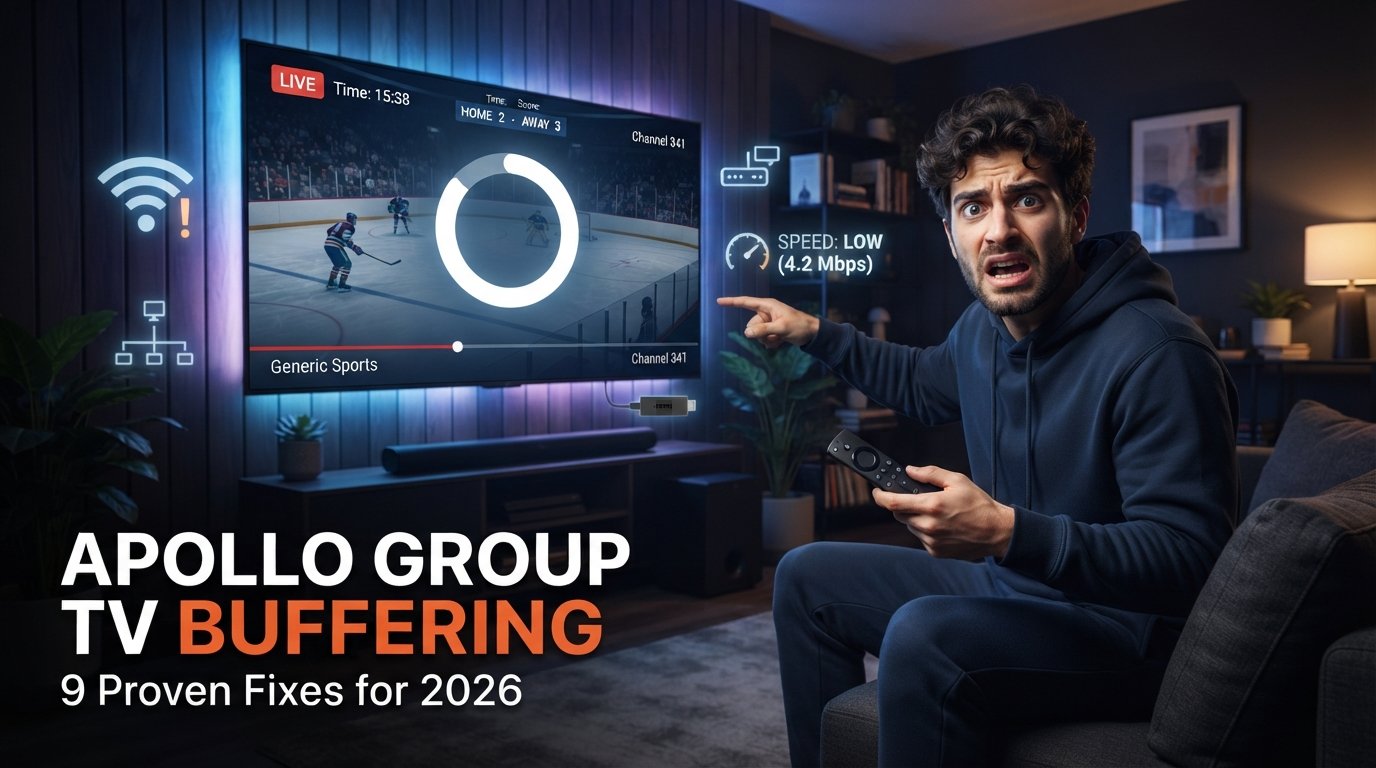
Apollo Group TV buffering can be especially annoying when the service seems to work normally for a few minutes and then suddenly freezes, reloads, or displays a spinning circle. The important thing to understand is that buffering is not one specific problem. It can be caused by weak Wi-Fi, unstable internet, an overloaded Firestick, the streaming application, one individual channel, network routing, or a temporary issue outside your home. That is why reinstalling everything immediately is usually the wrong first move.
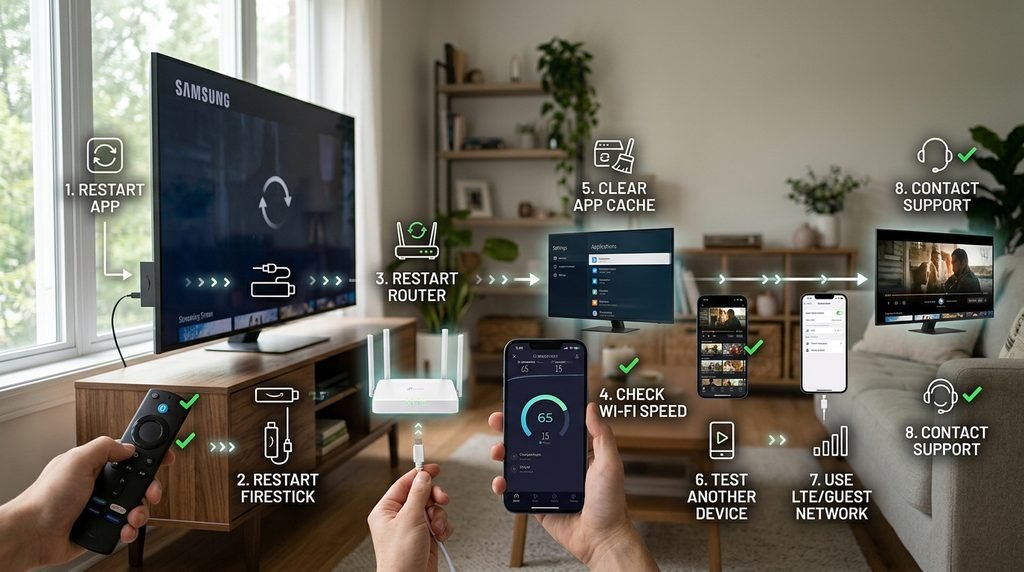
The fastest way to fix Apollo Group TV buffering is to test the system in a logical order. Start with several channels, then the application, streaming device, router, Wi-Fi connection, and another device or network if necessary. Each test removes one possible cause and tells you what to investigate next instead of making random changes that can create new problems. This guide covers the most useful Apollo Group TV buffering fixes for Firestick, Android TV, Smart TVs, phones, tablets, and other streaming devices. You will also learn how to tell whether the problem is your internet, your device, the app, or a specific stream.
Quick Answer: How to Fix Apollo Group TV Buffering
Start by testing several channels. If only one channel buffers while the others work normally, the issue may be isolated to that stream and there is little reason to reset your entire network. If everything buffers, completely restart the streaming application and device, then restart your router and test another streaming service on the same hardware. If Apollo Group TV buffering continues, check Wi-Fi signal quality, available Firestick storage, and whether the same account works better on another device. A temporary test using another network can also be extremely useful because it tells you whether the problem follows your home internet connection.
Avoid changing DNS, installing a VPN, factory-resetting your Firestick, and reinstalling the application all at once. Make one change, test again, and move to the next step only if the problem remains.
Why Does Apollo Group TV Keep Buffering?
Buffering happens when the video player runs out of content stored temporarily ahead of what you are watching. The player pauses because new streaming data is not arriving or being processed quickly enough to continue smooth playback. The visible symptom may look the same every time, but the underlying cause can be completely different. Common causes of Apollo Group TV buffering include unstable Wi-Fi, congestion on your home network, slow or inconsistent internet, limited device memory, low Firestick storage, an application that needs restarting, an individual stream having trouble, or a network route that temporarily performs poorly. This is why a speed test alone cannot diagnose everything.
One Channel vs Every Channel
One of the most useful distinctions is whether the problem affects one channel or the entire service. If one stream fails while ten others work normally, your Firestick, router, and subscription are clearly capable of streaming something successfully. You can use the Apollo Group TV channel list to choose channels from several categories and compare them. Test sports, news, entertainment, and another category rather than opening five channels that may use similar sources.
1. Test Multiple Channels First
Before changing any settings, open several different channels. This should always be the first Apollo Group TV buffering test because it immediately tells you whether the issue is isolated or widespread. If four channels work and one continuously buffers, leave your network and app alone for the moment. The individual stream may simply be having a temporary issue. If every channel buffers in roughly the same way, continue with broader troubleshooting.
What HappensWhat It May Suggest
One channel buffers
Individual stream issue
One category buffers
Category/source issue
All live TV buffers
Network, device, app, or service
Live TV buffers but VOD works
Live streaming path may be involved
Everything buffers
Broader connection/device problem
Other apps also buffer
Local network likely involved
This simple comparison can save you from spending an hour changing settings that were never responsible for Apollo Group TV buffering.
2. Restart the Apollo Streaming Application
Streaming applications remain open in memory even after you return to the home screen on some devices. Over time, temporary app data or memory problems can cause slow navigation, freezes, and Apollo Group TV buffering. Close the application completely and reopen it. On Firestick, you can use the application settings to force stop the app if simply pressing Home does not fully close it. After reopening, test the same channels you tried previously so the comparison is meaningful.
If playback becomes normal immediately after the restart, you probably encountered a temporary application or memory problem. There is no reason to reinstall a working app because of a problem solved by a simple restart.
Clear Cache, Not Everything
If the application continues behaving strangely, clearing its cache can sometimes help. Cache contains temporary files and generally does not remove your subscription credentials. Be careful with Clear Data. That is different and can reset the application, remove login information, and force you to configure everything again. Save your credentials before using any option that resets app data.
3. Restart Your Firestick or Streaming Device
A complete device restart is the next step if Apollo Group TV buffering remains after reopening the application. Firestick and Android TV devices have limited memory, and performance can gradually decline when many applications have been opened without a full restart. Restart the Firestick through its settings or power cycle the device properly. Once it boots again, open Apollo before launching several other applications and test playback. This gives the streaming app a cleaner environment and more available memory.
The same principle applies to Android TV boxes, Google TV devices, and Smart TVs. Restarting is far less disruptive than reinstalling software or factory-resetting the device and often fixes temporary performance problems.
4. Restart Your Router
Your Wi-Fi connection can appear normal while still having brief interruptions that are enough to cause Apollo Group TV buffering. Websites may load correctly because browsing uses short bursts of data, while live television requires a continuous stream. Restart your modem and router, allow the internet connection to fully return, and then test the same device again. Do not immediately open several apps and run multiple downloads while testing because you want to see how Apollo performs under clean conditions.
After restarting, open another streaming platform on the same Firestick or television. If that service also buffers, your local network deserves attention before you continue troubleshooting Apollo itself.
Internet Speed Is Only Part of the Story
A connection can show high Mbps on a speed test and still perform poorly for live streaming. Stability, packet loss, Wi-Fi interference, latency, and network routing can all matter. That is why “I have fast internet” does not automatically eliminate your network as a possible cause of Apollo Group TV buffering. A stable connection is often more valuable than a connection that is extremely fast for ten seconds and unstable afterward.
5. Check Your Wi-Fi Signal
Firestick users should pay particular attention to Wi-Fi. The device normally sits behind the television, where the TV itself, nearby electronics, walls, and distance from the router can weaken the wireless signal. If Apollo Group TV buffering occurs on your Firestick but the same account works well on a phone sitting closer to the router, the Firestick connection may be part of the problem. If your Firestick came with a short HDMI extension, moving the device slightly away from the television can sometimes help reception.
Ethernet can also provide a useful test where compatible hardware is available. You do not necessarily need to permanently switch to a wired connection, but comparing Wi-Fi with Ethernet can show whether wireless instability is contributing to the issue.
Test Another Network
A second network is one of the strongest diagnostic tools available. If possible, connect the streaming device or another compatible device to a different internet connection temporarily and test the same content. If Apollo Group TV buffering disappears on the other connection, your original home network becomes a much stronger suspect. If exactly the same problem occurs on both networks, you can start looking more closely at the application, device, account, or stream.
6. Check Firestick Storage and Performance
Low storage is another common issue that users overlook. Firesticks need free space not only for installing applications but also for caches, updates, and temporary system files. Remove applications you no longer use and delete old APK installation files left behind by Downloader. An APK that has already been installed does not need to remain stored on the device unless you intentionally want to keep it.
Apollo Group TV buffering can also be more noticeable on older Firesticks because they have less memory and weaker processors than newer models. If your account performs perfectly on another device but badly on one old Firestick, the hardware itself may be contributing.
Check Before Buying a New Device
Do not immediately replace the Firestick simply because streaming is slow. First test the same account on another compatible device using the same network. If the second device runs smoothly, then the Firestick becomes a much stronger suspect. That gives you evidence before spending money.
7. Verify the Application and Installation
If Apollo Group TV buffering started immediately after you installed a new app version or changed players, check the installation. A compatible application can still perform poorly if you installed an outdated or modified package from an unknown source. Use the Apollo Group TV installation guide to make sure your current setup matches the recommended method for Firestick, Android TV, or whichever device you use.
Avoid downloading random “no buffering APK” or “optimized Apollo app” files. No modified application can guarantee zero buffering because many of the causes exist outside the app itself. If your existing application worked properly for months and buffering appeared suddenly today, do not automatically assume the app needs reinstalling. The timing suggests that something else may have changed.
8. Test With and Without a VPN
VPNs are often recommended online as a universal IPTV fix, but reality is more complicated. A VPN changes the route your internet traffic takes, and that route can sometimes be better or worse than the normal one. If you already use a VPN and experience Apollo Group TV buffering, turn it off temporarily and test the same channel. If the problem disappears, try another VPN server or leave the VPN disabled for comparison.
If you do not currently use a VPN, do not rush to purchase one just because buffering exists. Complete the normal router, Wi-Fi, device, and app tests first. A VPN cannot fix low Firestick storage, incorrect login credentials, an overloaded device, or one malfunctioning channel.
9. Test Another Device
Another device can tell you a huge amount about Apollo Group TV buffering. Use the same account on a compatible phone, Android TV device, tablet, or another streaming box if possible. If Apollo runs smoothly on another device connected to the same home Wi-Fi, the first device probably deserves attention. If both devices buffer in exactly the same way, your network or something farther upstream becomes a more realistic possibility.
You can take this test one step further by combining devices and networks:
Device A + Home Wi-Fi
Device B + Home Wi-Fi
Device B + Another network
Comparing those combinations gives you much better evidence than repeatedly reinstalling Apollo on the same Firestick.
Apollo Group TV Buffering on Firestick
Apollo Group TV buffering on Firestick is particularly common to troubleshoot because Fire TV devices combine several potential bottlenecks in a small piece of hardware. Wi-Fi reception, limited memory, storage, background applications, APK compatibility, and Fire OS updates can all influence performance. The best Firestick troubleshooting order is simple: test multiple channels, restart the app, restart Firestick, restart the router, test another streaming app, check storage, clear cache, and compare another device. Only after those steps should you think about reinstalling the application.
If you need to reinstall because the app itself appears corrupted, make sure you save your streaming credentials first. Installation problems and buffering problems should still be treated as separate issues.
Apollo Group TV Buffering Every Few Seconds
If playback stops every few seconds, the player is repeatedly running out of buffered video. This usually points toward an unstable connection, overloaded device, insufficient incoming data, or a problematic stream. Test a different channel immediately. If every stream behaves the same way, check your network and device. If one channel is much worse than the rest, the individual stream may be responsible.
Also look at what other devices in your home are doing. Large game downloads, cloud backups, multiple 4K streams, security-camera uploads, and software updates can all put additional pressure on your router and internet connection.
Apollo Group TV Buffering During Sports
Sports streams are particularly sensitive because users tend to watch them during peak periods and any interruption is immediately noticeable. If Apollo Group TV buffering mainly occurs during one live event, compare another sports channel and a normal entertainment channel at the same time. If only one event struggles, changing your entire network setup is unlikely to solve it. If every stream begins buffering during those same evening hours, your home network, ISP congestion, or broader conditions may deserve more investigation.
Sports viewers should also avoid judging performance from a five-minute test during the middle of the day. Test the service during the times you actually plan to use it.
Apollo Group TV Buffering at Night
Buffering that appears primarily in the evening can provide a useful clue. More people may be using your home network, and internet networks outside your home can also experience different traffic levels depending on the provider and area. Compare another streaming service on the exact same device during the same evening period. If YouTube or another platform also performs poorly, local network or ISP conditions become more likely.
If everything else runs perfectly while Apollo Group TV buffering continues across several channels, continue with Apollo-specific testing rather than repeatedly restarting the router.
Apollo Group TV Buffering With Fast Internet
Seeing a fast speed-test result does not mean your connection is perfect. Speed tests measure your connection to a particular test server for a short period, while streaming can follow a completely different network path. Wi-Fi can also fluctuate dramatically. Your Firestick may receive a weaker signal than the smartphone you used to run the speed test.
If Apollo Group TV buffering continues despite good headline speeds, compare the connection over time, test the streaming device itself, and try another network if practical. Those tests tell you far more than one speed-test number.
When Should You Contact Apollo Group TV Support?
Support becomes useful when Apollo Group TV buffering continues after you have tested several channels, restarted the application and device, checked your network, and compared another device or connection. For account-specific assistance, you can contact Apollo Group TV support through WhatsApp. Tell them which device and application you use, which channels are affected, when the problem started, and what you already tested.
A message such as “Firestick 4K, all live channels buffer, router and Firestick restarted, YouTube works normally, and the same Apollo problem happens on my phone” provides far more useful information than simply saying “buffering.”
Common Apollo Group TV Buffering Mistakes
Avoid these common troubleshooting mistakes:
Reinstalling because one channel buffers.
Factory-resetting Firestick immediately.
Assuming a fast speed test proves Wi-Fi is perfect.
Installing random “buffer-free” APK files.
Changing DNS, VPN, router, and app settings simultaneously.
Clearing app data without saving login credentials.
Ignoring low Firestick storage.
Testing only one channel.
Buying another subscription because playback buffers.
Assuming a VPN always improves streaming.
Ignoring other devices using bandwidth.
Blaming the app before testing another device.
A controlled approach is much faster than changing everything and hoping one adjustment works.
Frequently Asked Questions
Why does Apollo Group TV keep buffering?
Apollo Group TV buffering can come from weak Wi-Fi, unstable internet, device performance, low storage, application issues, an individual stream, network routing, or a broader temporary service problem.
How do I fix Apollo Group TV buffering on Firestick?
Restart the app and Firestick, test multiple channels, restart your router, check Wi-Fi signal and Firestick storage, and compare another device before reinstalling anything.
Does a VPN stop Apollo Group TV buffering?
Sometimes changing network routes can affect performance, but a VPN can also slow the connection. Test rather than assuming it will automatically improve streaming.
Why does Apollo buffer even though my internet is fast?
A speed test does not measure every aspect of streaming. Wi-Fi stability, packet loss, routing, Firestick performance, and the individual stream can still cause problems.
When should I contact support?
Contact support when Apollo Group TV buffering continues across several channels after basic troubleshooting, especially if you have also tested another device or network.
Final Thoughts on Apollo Group TV Buffering
Apollo Group TV buffering becomes much easier to troubleshoot when you stop treating every playback freeze as the same problem. Start with the channels, then the application, device, router, Wi-Fi, another device, and finally another network. Each test tells you something useful and helps eliminate causes without changing settings unnecessarily. Avoid jumping straight to VPNs, DNS changes, factory resets, or complete reinstalls. Those solutions sometimes have a place, but they should come after the basic tests, not before them. If one channel buffers while everything else works, leave your Firestick alone. If every streaming app struggles on the same device, focus on your network.
If Apollo Group TV buffering continues across multiple devices and connections while other services work normally, that is when contacting support becomes far more reasonable. The goal is not to try the largest number of fixes. It is to identify where the problem actually exists and make only the change that addresses it. That approach will save time, protect your existing setup, and give you a much better chance of resolving Apollo Group TV buffering permanently.