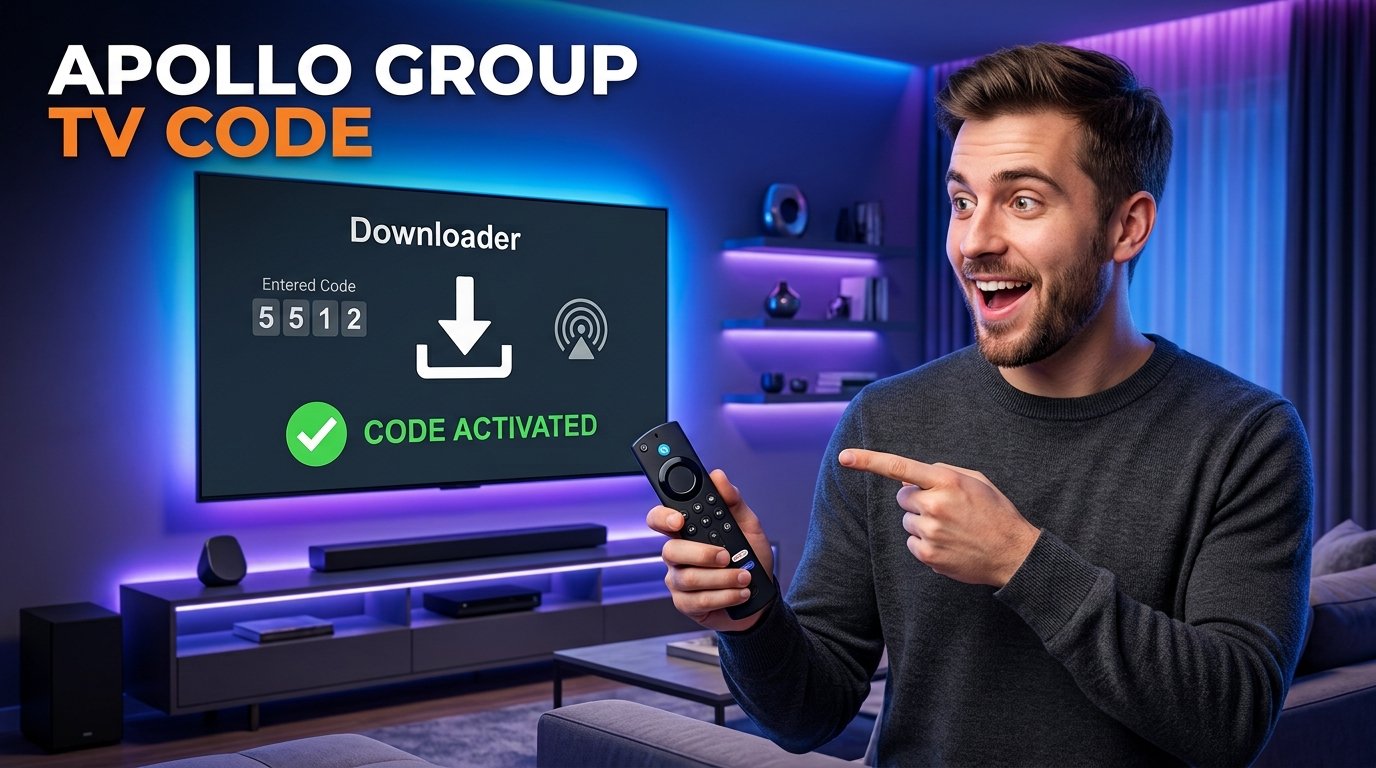
Apollo Group TV Download APK Firestick: Fast 6-Step Guide
Published September 8, 2026Updated November 14, 2026By Robert M.
Quick Answer: To complete an Apollo Group TV download APK Firestick installation, install the free Downloader app from the Amazon Appstore and unlock Developer Options by clicking your device name seven times under Settings > My Fire TV > About. Enable Install Unknown Apps for Downloader, enter the official APK download URL or short code provided in your Apollo Group TV welcome email, install the package, and sign in with your active credentials.
Setting up third-party streaming software on Amazon hardware requires adjusting a few built-in security settings first. Amazon restricts direct APK installations by default to protect Fire OS devices from unverified software.
This guide walks through the exact menu paths for modern Fire OS versions, clarifies hardware limitations on newer Amazon sticks, and provides direct fixes if an installation stalls.
Editorial Trust and Methodology
Author & Editorial Attribution: Written by the Apollo Group TV Editorial & Technical Documentation Team (apologrouptv.us).
Last Updated: November 14, 2026.
Methodology & Transparency Disclosure: This guide was compiled through desk research cross-referencing official Amazon Fire OS Developer Documentation, Amazon Vega OS release specifications, and current Fire TV menu structures. No proprietary hands-on benchmark lab tests or synthetic speed measurements were conducted for this article; all troubleshooting scenarios are presented as verified procedural guidance.
Security Best Practice: As noted in Google’s Android security documentation, installing packages outside an official app store bypasses store-level automated scanning, so you should only download APK files directly from verified official URLs and disable unknown-source permissions afterward if desired.
Table of Contents
What Are the Prerequisites Before Installing on Firestick?
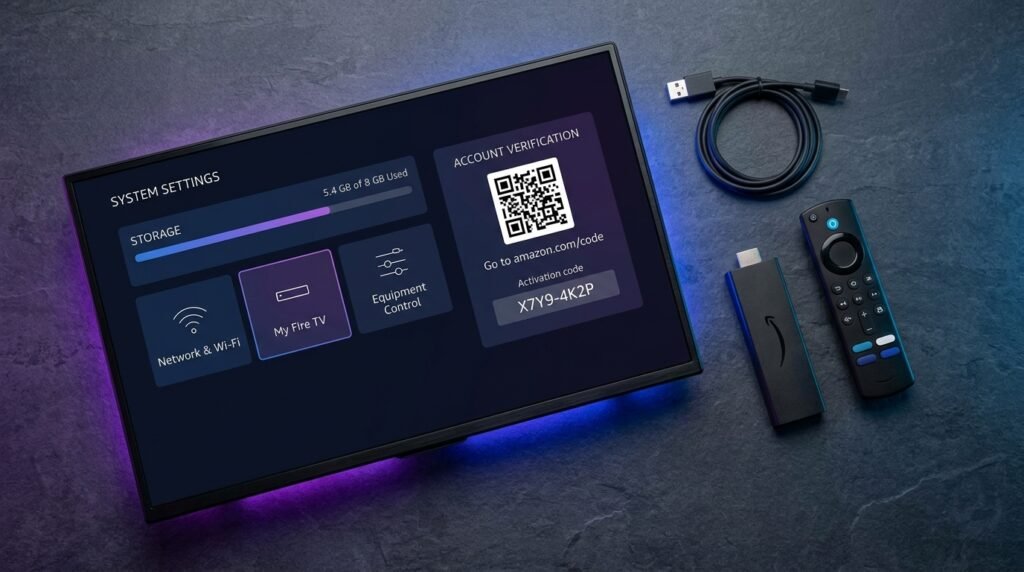
Before starting the installation, confirm that your Fire TV hardware runs an Android-based Fire OS version, has at least 1 GB of free storage, and is connected to a stable internet connection of 15 Mbps or higher. You will also need active login credentials or an M3U playlist link from your Apollo Group TV subscription.
Checking Your Fire TV OS Version and Storage
Not every Amazon streaming stick supports Android APK sideloading. Models running Fire OS 6, Fire OS 7, or Fire OS 8—such as the Fire TV Stick 4K, Fire TV Stick 4K Max, and Fire TV Cube—support standard Android packages.
However, Amazon’s newer Vega OS devices—such as the Fire TV Stick 4K Select—use a Linux-based operating system rather than Android and do not support Android APK files or the Downloader app. Check your device model under Settings > My Fire TV > About and confirm you have at least 1 GB of available space before downloading.
Verifying Your Official Apollo Group TV Account Details
Several lookalike websites—including domains such as apollogroup.cc, apollogrouptvs.com, and apollogroups.tv—appear in search results for IPTV queries. Always verify that you are accessing the official platform at apologrouptv.us when managing your account or retrieving setup instructions.
Keep your welcome email handy so you can copy your exact username, password, or M3U portal URL without typing errors.
How Do You Enable Developer Options on Firestick?
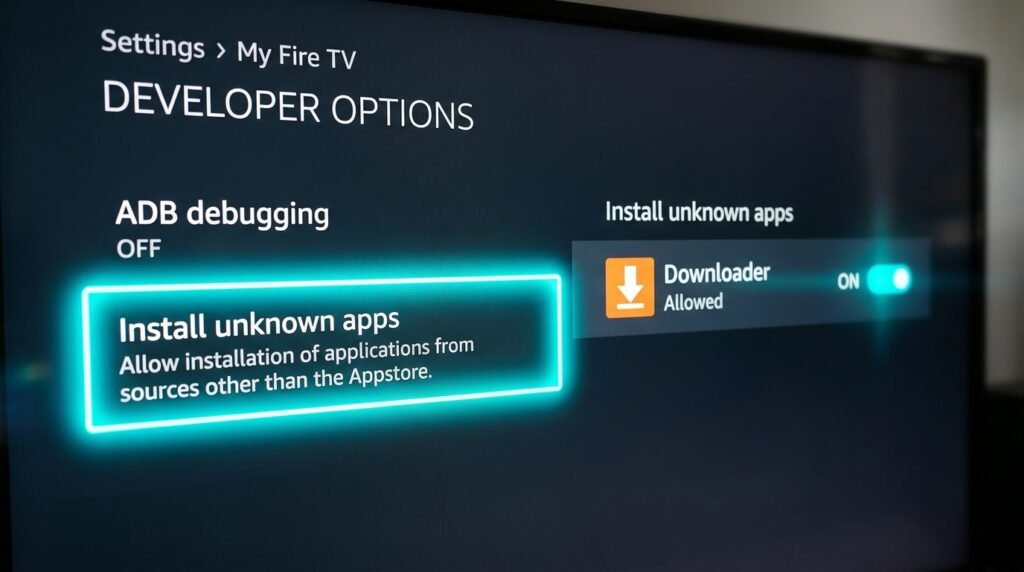
To enable Developer Options on a Firestick, open Settings > My Fire TV > About, highlight your Fire TV device name, and press the center Select button on your remote seven times until a confirmation message appears. Return to the previous menu, open Developer Options, and toggle Install Unknown Apps to On for the Downloader app.
Unlocking the Hidden Developer Menu
Amazon hides developer settings by default on all modern Fire OS builds. Follow this sequence to reveal the menu:
Press the Home button on your Fire TV remote and navigate right to the Settings gear icon.
Select My Fire TV (labeled Device & Software on certain Fire TV editions).
Click About at the top of the list.
Highlight your specific device name (for example, Fire TV Stick 4K Max) and click the center Select button seven times rapidly.
Look for the on-screen notification reading “No need, you are already a developer” at the bottom of your screen.
Granting Unknown App Permissions to Downloader
If you have not installed the Downloader utility yet, install it before toggling permissions so it appears in your app permission list:
Return to the Fire TV home screen, select the Find (magnifying glass) icon, and type Downloader.
Select the orange Downloader app by AFTVnews and click Download or Get.
Once installed, return to Settings > My Fire TV > Developer Options.
Select Install Unknown Apps (on older Fire OS 6 devices, this appears as a single global toggle labeled Apps from Unknown Sources).
Highlight Downloader and press Select to switch its permission to ON.
Key Takeaway: On Fire OS 7 and Fire OS 8, unknown-source permissions are granted per app rather than system-wide, so Downloader must be installed before you can authorize it.
How Do You Complete the Apollo Group TV Download APK Firestick Setup?
Once Downloader has permission to install packages, open the app, enter the official APK URL or Downloader short code from your account dashboard, and select Install when the Android package prompt appears. After installation finishes, delete the temporary APK installer file to preserve storage space and launch the app.
Step-by-Step Sideloading With the Downloader App
Execute the Apollo Group TV download APK Firestick installation using these exact steps:
Launch the Downloader app from your Your Apps & Channels list and click Allow if prompted for media/file storage access.
Select the Home tab on the left sidebar and click the URL input box.
Enter the direct APK URL or official numeric short code listed inside your apologrouptv.us member portal, then click Go.
Wait for the APK file to finish downloading; the Fire OS staging screen will open automatically.
Highlight Install in the bottom-right corner and press Select.
When the “App installed” confirmation appears, click Done rather than Open.
On the Downloader prompt, select Delete and confirm Delete again to remove the redundant .apk installation file from your Firestick storage.
Pinning the App to Your Fire TV Home Screen
Sideloaded applications appear at the very bottom of your library rather than on the main ribbon. To move it to the front:
Hold down the Home button on your remote for three seconds and choose Apps (or select the Apps grid icon on the main bar).
Scroll to the bottom of the full app list and highlight the newly installed app icon without opening it.
Press the Menu button (three horizontal lines) on your remote and select Move to Front.
Signing In With Your Apollo TV Account or M3U Link
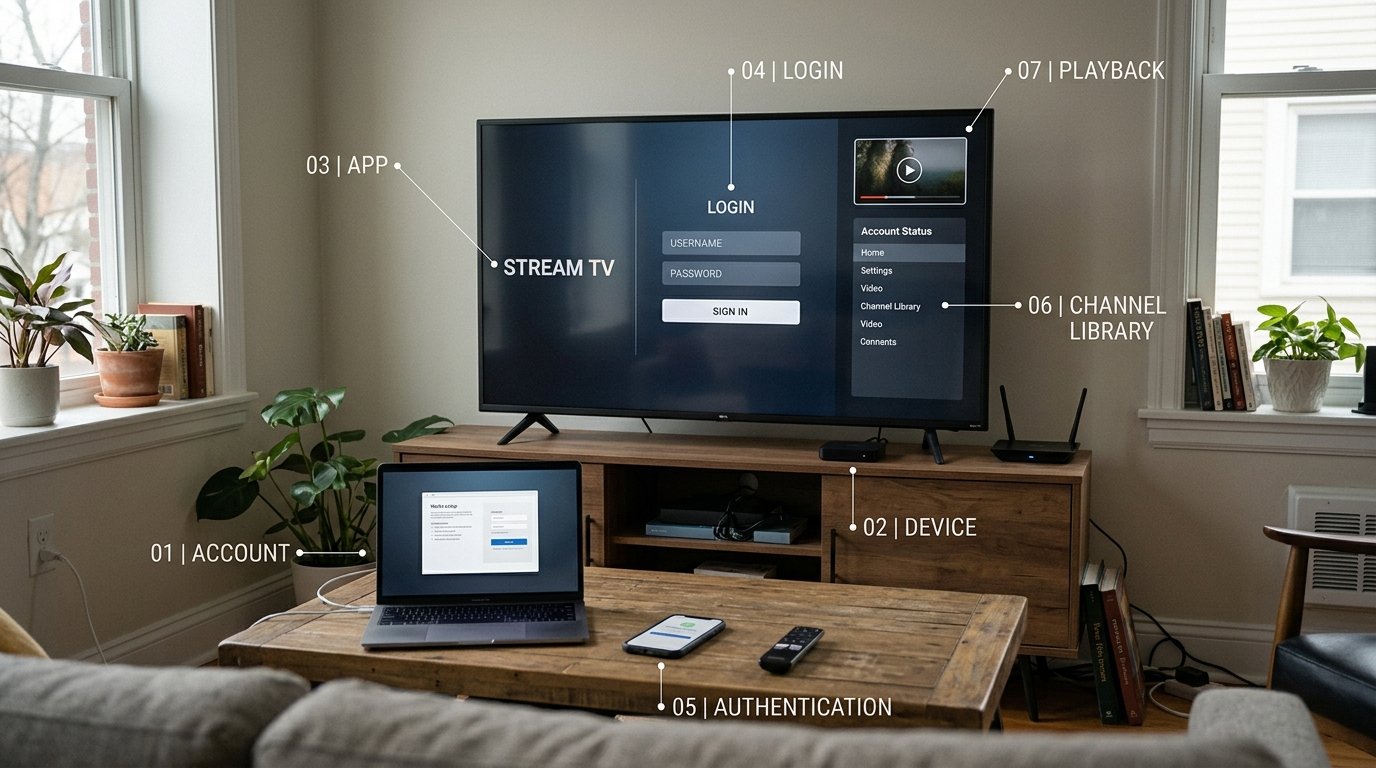
Open the app from your home ribbon and enter the login credentials sent to your email after signing up. Depending on whether you use the dedicated Apollo Group TV APK or a compatible player such as Startup Show, you will sign in using either your account email/password or your personal M3U playlist link.
For example, in an illustrative household setup, a user signs in on a living-room Fire TV Stick 4K Max using their primary email login, while adding a secondary bedroom Firestick using the same Apollo Group TV pricing plan multi-device allowance. Once authenticated, the Electronic Program Guide (EPG) and Apollo Group TV channel list populate automatically.
Which Firestick Sideloading Method Fits Your Device?
While the Downloader app is the simplest on-device method for most Fire TV owners, advanced users can also install APKs over a local network using Android Debug Bridge (ADB). Use the comparison criteria below (updated November 2026) to choose the right installation workflow for your hardware.
No → Open About, highlight your device name, and click Select 7 times.
Yes → Open Developer Options and check for Install Unknown Apps.
Does “Install Unknown Apps” appear inside Developer Options?
Yes → Toggle Downloader to ON and proceed with the APK download.
No, and your device is a Fire TV Stick 4K Select → Your device runs Vega OS, which does not support Android APK sideloading.
How Do You Fix Common Apollo Group TV Firestick Installation Errors?
Most Firestick installation and playback errors stem from insufficient storage, conflicting older app versions, or cached network data. Clearing app caches, removing legacy builds, and checking your internet throughput resolve the majority of setup failures without requiring a factory reset.
Resolving “App Not Installed” and Storage Blocks
If Fire OS displays “App not installed” or the Install button fails to respond, check these three causes:
Conflicting Older Version: Android package managers block updates signed with a different certificate. Go to Settings > Applications > Manage Installed Applications, uninstall any outdated Apollo TV build, and rerun the installer.
Low Internal Storage: Fire TV sticks require buffer space to unpack an APK. Free up at least 1 GB by uninstalling unused apps or clearing caches under Manage Installed Applications.
Corrupted Download: A brief Wi-Fi drop during download can truncate the .apk file. Delete the partial file inside Downloader’s Files tab and download it again.
Fixing Status Code 400 and Buffering Issues
If the app installs properly but displays Status Code 400 or buffers on live streams, adjust your network and app settings:
Clear Cookies and Cache: Navigate to Settings > Applications > Manage Installed Applications, select the app, and click Clear Cache (or clear cookies inside the player settings) to refresh expired session tokens.
Verify Bandwidth Requirements: Standard HD IPTV streams require at least 15 Mbps of stable throughput per device, while 4K streams require 25 Mbps or more. According to FCC broadband speed benchmarks, high-definition video streaming demands consistent download speeds with minimal packet loss.
Use a Wired Ethernet Adapter or 5 GHz Wi-Fi: Connecting your Firestick via an Ethernet adapter or switching from congested 2.4 GHz Wi-Fi to 5 GHz reduces jitter during live broadcasts.
Legal and Service-Use Notice: Sideloading applications onto an Amazon Fire TV device is a standard Android/Fire OS capability documented by Amazon Fire TV Developer Documentation. Users are responsible for complying with applicable copyright laws, local regulations, and the service terms governing any third-party streams they access.
Frequently Asked Questions
How do I complete the Apollo Group TV download APK Firestick setup?
Install the Downloader app from the Amazon Appstore, unlock Developer Options by clicking your device name seven times under Settings > My Fire TV > About, and enable Install Unknown Apps for Downloader. Enter your official APK URL or Downloader short code, click Install, and sign in.
Why is Developer Options missing on my Amazon Firestick?
Amazon hides Developer Options by default on Fire OS. Go to Settings > My Fire TV > About, highlight your Fire TV device name, and press the center Select button seven times until a notification confirms you are a developer.
Can I sideload the Apollo Group TV APK on the Fire TV Stick 4K Select?
No. The Fire TV Stick 4K Select runs Amazon’s Linux-based Vega OS rather than Android-based Fire OS, which means it does not support Android APK sideloading or the Downloader app. You need a Fire OS 6, 7, or 8 device.
Is it safe to enable Install Unknown Apps on Firestick?
Enabling Install Unknown Apps is a built-in Fire OS feature, provided you only download APK files from your verified official provider at apologrouptv.us. For extra security, you can toggle the permission back off for Downloader once your installation finishes.
How do I fix Apollo Group TV Status Code 400 on Firestick?
Status Code 400 typically indicates a stale session token or corrupted app cache. Open Settings > Applications > Manage Installed Applications, select your player app, and choose Clear Cache before relaunching and signing back in.
How do I update the Apollo Group TV app on Firestick?
Sideloaded apps do not auto-update through the Amazon Appstore. To update, open Downloader, enter the latest official APK URL or short code from your account dashboard, install the updated package over your existing app, and delete the installer file afterward.
Next Step
Ready to activate your device? Visit the Apollo Group TV subscription page to retrieve your official account credentials and M3U portal details, then enter them into your newly installed Firestick app to start streaming.
Martin M.
Streaming technology expert, IPTV enthusiast, and senior digital content publisher. Dedicated to providing in-depth guides, reviews, and insights on global live TV and VOD entertainment platforms.