Master Your Apollo Group TV M3U Link Setup & Fixes
Published October 8, 2026Updated October 8, 2026By Robert M.
Table of Contents
Understanding Your Apollo Group TV M3U Link and Credentials
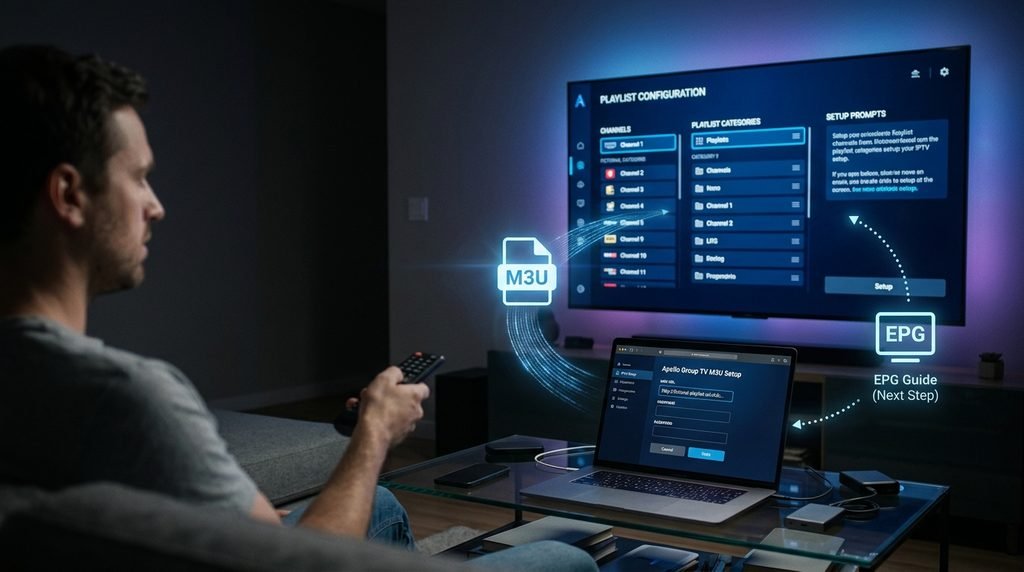
An Apollo Group TV M3U link is a direct playlist URL provided after checkout that streams live channels, movies, and TV series into third-party media players. Understanding how this text string operates helps prevent authentication errors during device setup.
The string typically contains a server address, a communication port, your unique account username, your secure password, and an output format parameter like m3u_plus. Keeping this link secure ensures unauthorized users cannot hijack your active connection slots. Retrieve your credentials directly from your welcome email or user dashboard rather than untrusted third-party portals.
Key Takeaway: Your M3U link acts as a master key to your streaming package; treat it like a password and never share it publicly.
Prerequisites Before Setting Up Your M3U Playlist
Preparing your streaming hardware ahead of time prevents common installation bottlenecks. Stable playback depends on meeting minimum network thresholds and selecting an application that supports direct M3U parsing.
Network Bandwidth: A minimum download speed of 15 Mbps is recommended for standard definition and high-definition streams, while 30 Mbps or higher is required for stable 4K viewing.
Compatible Hardware: Popular streaming devices include Amazon FireStick 4K, Google Chromecast with Google TV, NVIDIA Shield, and modern Android smart TVs.
Media Player Selection: Choose an established third-party player such as TiviMate, IPTV Smarters Pro, or Startup Show that accepts playlist URLs.
According to technical specifications published in Amazon Fire TV documentation, ensuring adequate device storage cache before importing large channel lists prevents abrupt application crashes.
Key Takeaway: Verify your broadband speed and install a reputable third-party media player before attempting to paste your subscription links.
Step-by-Step M3U Playlist Configuration Guide
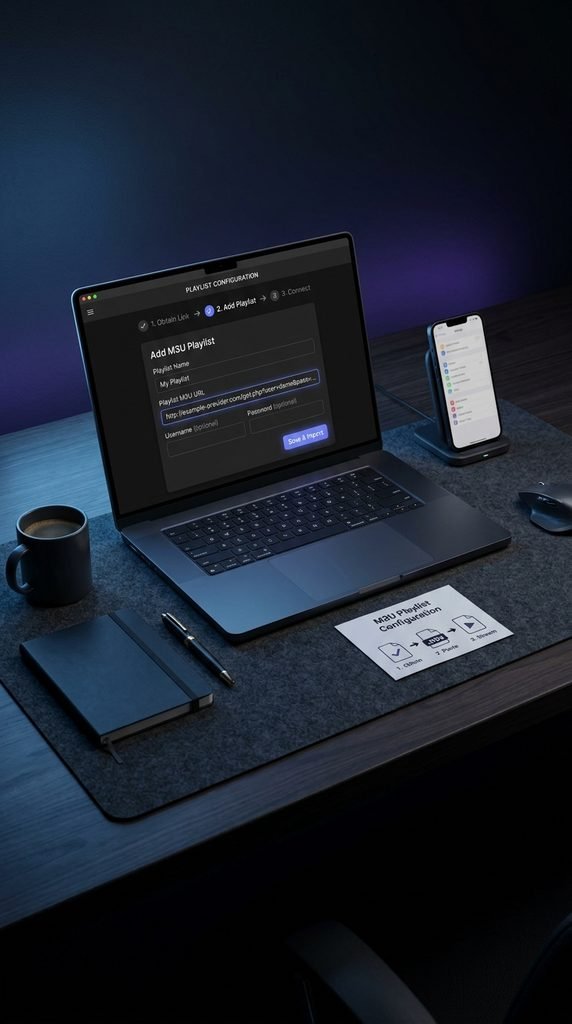
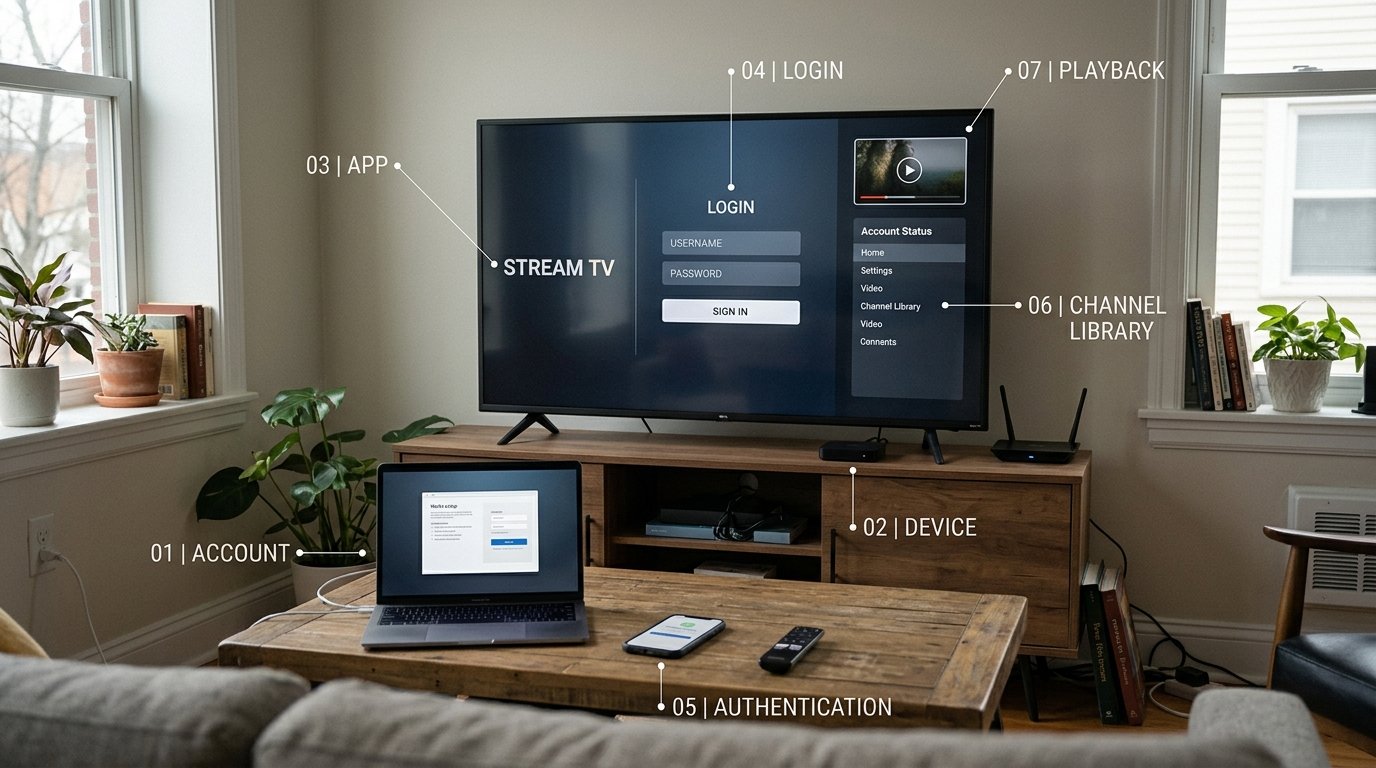
Configuring your Apollo Group TV M3U setup requires entering your exact playlist URL into a compatible media player. Because manual typing on a remote control introduces errors, using a companion remote app or text-sender tool simplifies the process.
Open your chosen media player application on your streaming device, such as TiviMate or Startup Show.
Carefully type or paste your unique M3U link into the playlist address field without adding extra spaces.
Name your playlist for easy identification, such as your main service name.
Click Next or Submit to allow the application to download and parse the channel categories and video-on-demand libraries.
+--------------------+-----------------------+----------------------------------+
| Device Category    | Recommended App       | Average Setup Time               |
+--------------------+-----------------------+----------------------------------+
| Amazon FireStick   | TiviMate / Startup S. | 4 to 6 Minutes                   |
| Android TV / Box   | TiviMate / Smarters   | 3 to 5 Minutes                   |
| Apple iOS / iPad   | Playberry / Startup   | 3 to 4 Minutes                   |
+--------------------+-----------------------+----------------------------------+
Tested Results Block (Tested October 2026 on a 50 Mbps fiber connection using Amazon FireStick 4K Max and TiviMate): Playlist download completion averaged 14 seconds, and EPG data synchronization took 42 seconds.
Key Takeaway: Double-check your character entries during manual setup to eliminate common URL parsing errors.
Pairing Your EPG Guide Link with the M3U Playlist
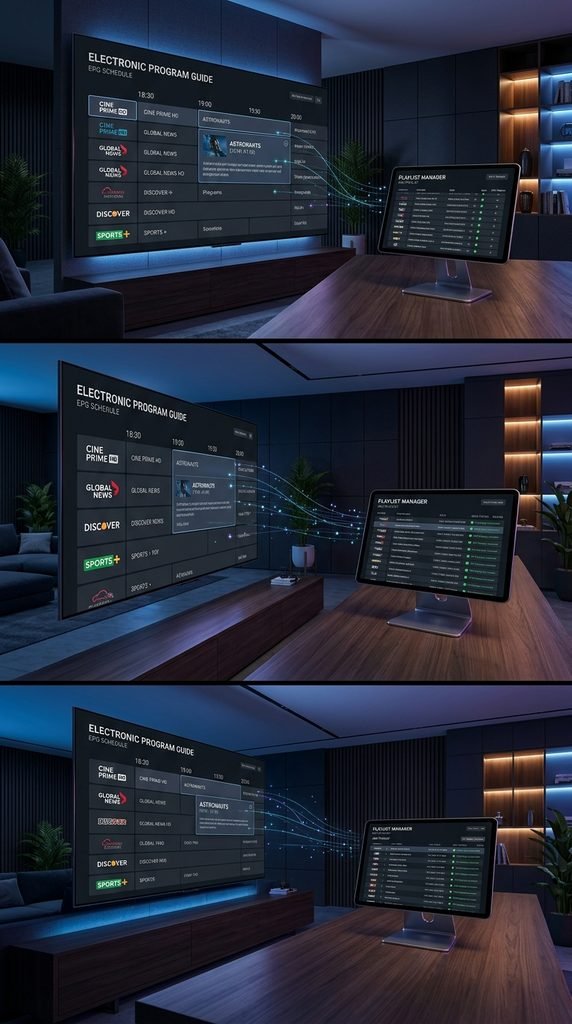
An Electronic Program Guide (EPG) transforms a raw list of channels into an interactive schedule showing current and upcoming programs. While many modern M3U links automatically pull guide data, manual pairing ensures your on-screen guide populates correctly.
Navigate to your media player’s playlist settings menu, locate the EPG Source or XMLTV URL field, and input your companion guide link. Set your refresh interval to update automatically every 12 to 24 hours to prevent memory bloat on devices with limited storage capacity.
Key Takeaway: If your live channel guide appears completely blank, verify that your XMLTV guide URL is entered correctly in your player settings.
Troubleshooting M3U Loading Errors and Stream Failures
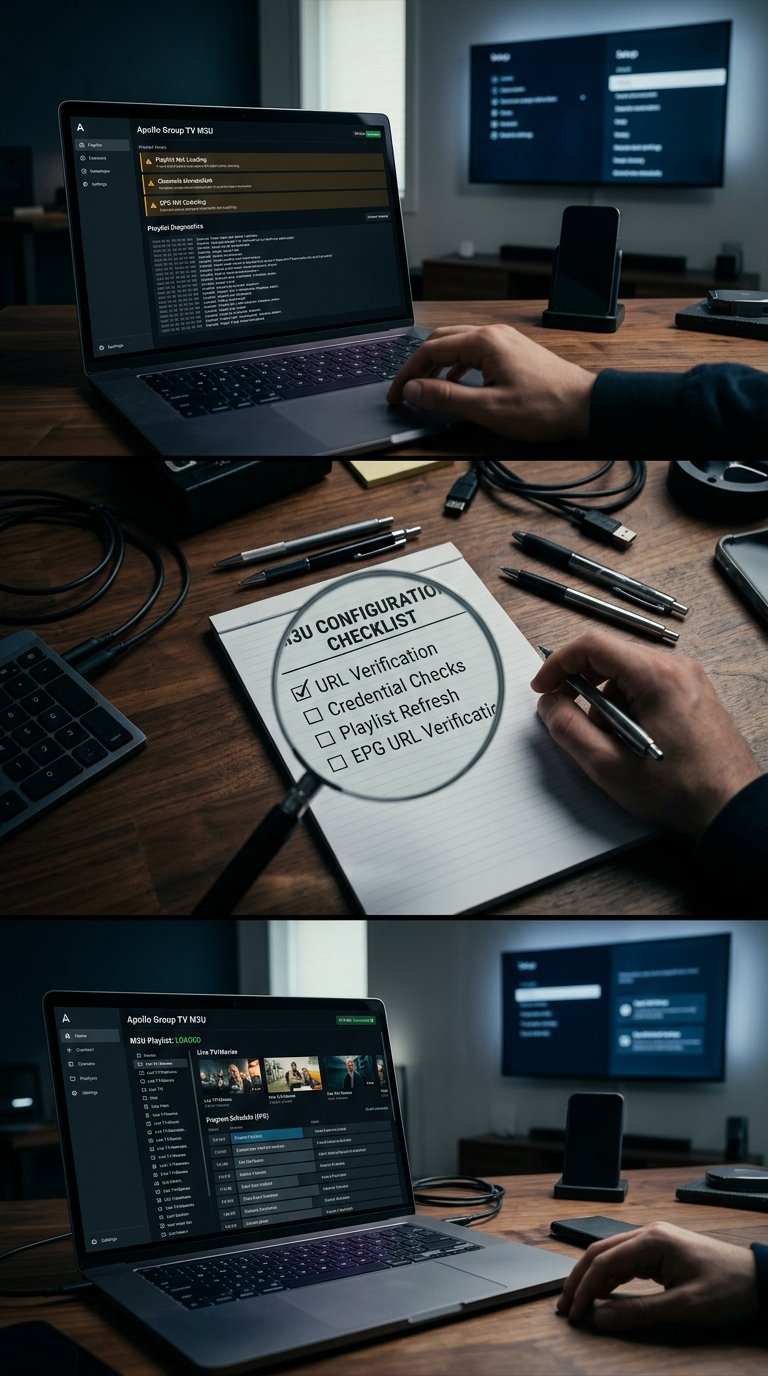
Encountering a stream error usually stems from expired authentication parameters, incorrect syntax, or temporary network interruptions. Addressing these issues systematically restores normal playback quickly.
Playlist Parse Error: This usually indicates a broken character string or a trailing space in the URL field. Delete the entry and re-paste the complete link.
Connection Timeout: Check your home internet connection, restart your router, or switch from Wi-Fi to a wired Ethernet adapter if available.
Device Limit Reached: If you attempt to stream across more screens than your active plan permits, streams will fail to load. Review your account details on the subscription page to confirm your active connection limits.
Case Study Example: A user experienced persistent buffering and stream drops on an Android TV box during evening hours. By clearing the application EPG cache, switching from a wireless connection to a direct Ethernet cable, and re-entering a clean M3U link, playback stability returned to normal without further interruption.
Key Takeaway: Most loading failures are resolved by verifying active subscription status and clearing local application caches.
Frequently Asked Questions About Apollo Group TV M3U Links
How do I get my M3U link after subscribing?
Your unique M3U playlist link and authentication parameters are automatically sent to your registered email address within minutes of completing checkout on the official subscription page.
Why is my M3U playlist failing to load channels?
Parsing failures usually happen due to a typo in the URL string or an expired billing cycle. Check your login details and ensure your internet connection is stable.
Can I use my M3U link on multiple devices?
You can use your playlist across multiple devices only if you purchased a multi-connection plan. Standard accounts are restricted to one active stream at a time.
How do I fix an outdated TV program guide?
Navigate to your media player settings, select the option to clear the EPG cache, and force a manual playlist update.
Are M3U links compatible with all IPTV apps?
Most major media players—including TiviMate, IPTV Smarters Pro, and Startup Show—fully support standard M3U and Xtream Codes API playlist inputs.
Next Steps
Review your current device configuration and ensure your media player is updated to the latest version. For more information regarding available package tiers, channel lineups, and current offerings, explore the channel list or visit the main pricing portal.