Apollo TV App: Complete Download & Setup Guide (2026)
Published October 22, 2026Updated October 22, 2026By Robert M.
Streaming television has shifted away from traditional cable boxes toward flexible, application-based viewing. If you are looking to streamline your entertainment setup, mastering the apollo tv app is essential. Whether you want to catch live sports, global news, or on-demand movies, configuring your streaming hardware correctly ensures a smooth, buffer-free experience. Apollo Group TV integrates modern streaming technology with a vast library of live channels and video-on-demand content, all accessible directly through your preferred media player or dedicated device applications.
Quick Answer: The apollo tv app is not a single standalone app found in standard app stores; instead, it is accessed by configuring compatible third-party media players (such as IPTV Smarters Pro or Tive Player) using your official subscription credentials, or by sideloading specialized applications onto devices like Amazon FireStick and Android TV.
Table of Contents
Getting Started with Apollo Group TV
Understanding how your subscription works is the first step toward a successful setup. Before downloading any software, ensure you have your active credentials ready from your Apollo Group TV subscription.
You will typically need your username, password, and server URL or M3U playlist link. Having these details handy prevents interruptions during the installation process. Reviewing the official channel list beforehand can also help you determine which categories or favorite networks you want to configure first.
How to Download and Install the Apollo TV App
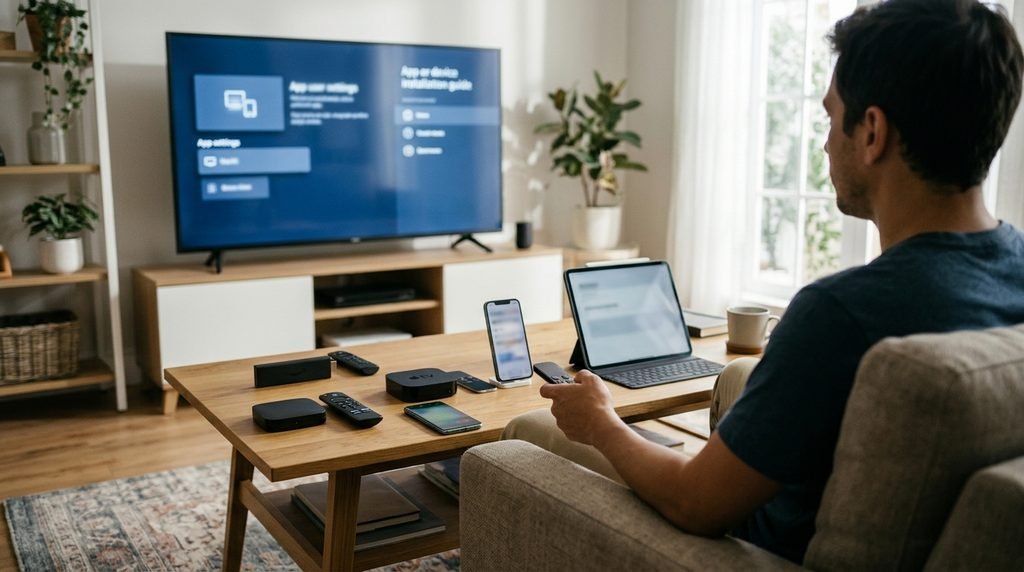
Different streaming hardware requires specific installation methods. Because major app stores often have strict policies regarding IPTV applications, sideloading or using verified companion players is standard practice.
Installing on Amazon FireStick and Fire TV
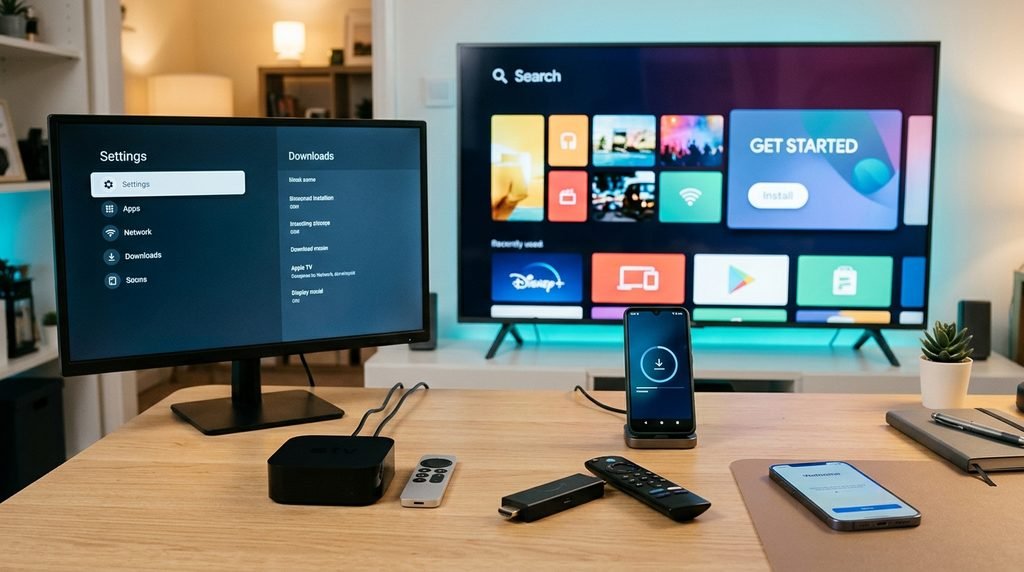
Amazon Fire devices are among the most popular platforms for streaming live television. Because the interface relies heavily on sideloading for custom applications, a specific utility tool is required.
To install the service on your FireStick:
Turn on your Fire TV and navigate to the Find tab on the home screen.
Search for and download the official Downloader application by AFTVnews.
Go to your device Settings > My Fire TV > Developer Options (enable developer options if hidden by clicking your build version seven times).
Turn on Install Unknown Apps and enable it for the Downloader app.
Open Downloader and enter the verified download URL or short code provided in your official portal.
Once the APK file downloads, click Install and open the application.
Setting Up on Android Mobile and Android TV
Android users enjoy direct browser access and open file systems, making installation straightforward.
To set up your device:
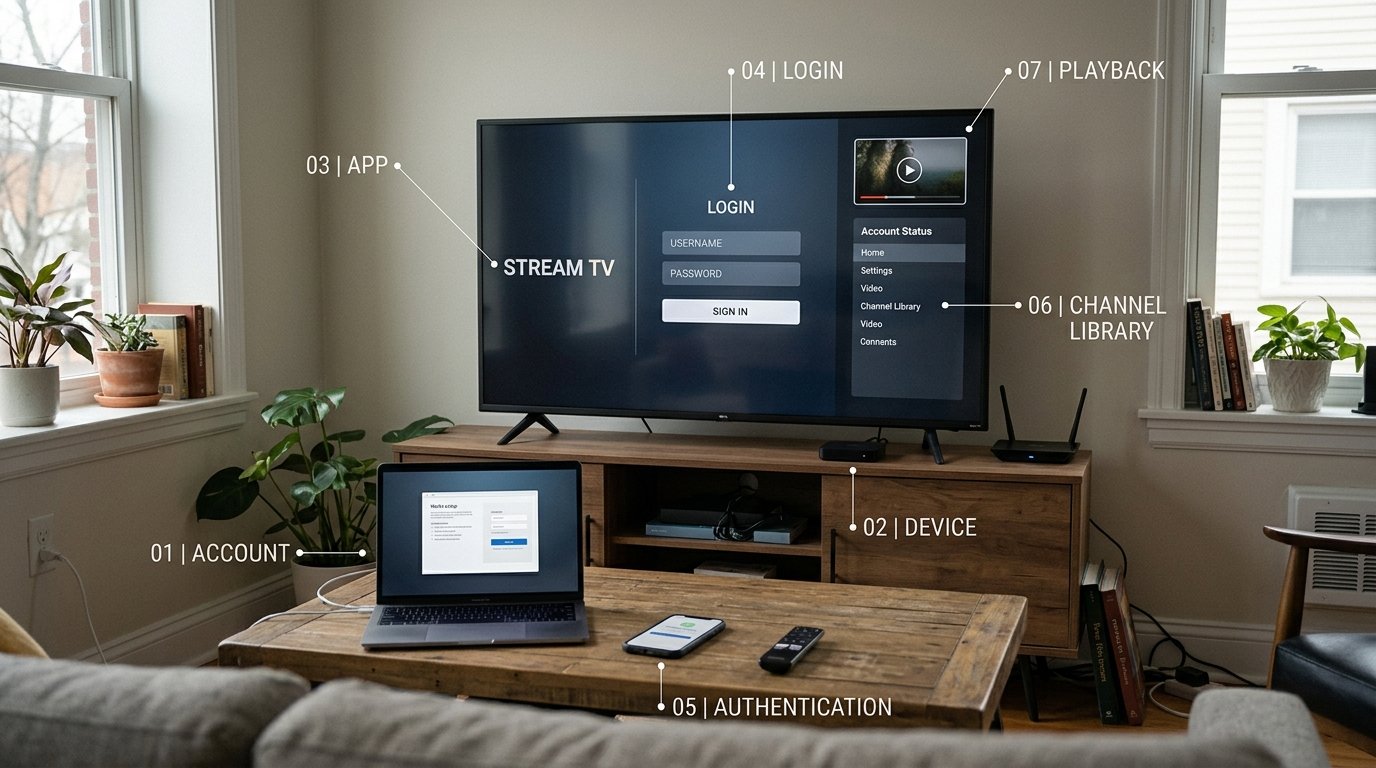
Open your device’s web browser and log into your account portal at Apollo Group TV.
Download the direct Android APK installer file.
Allow your browser permission to install apps from unknown sources when prompted.
Tap the downloaded file to complete the installation process.
Launch the app and input your login credentials to populate your channel guide.
Using iOS and Apple TV Devices
Apple’s walled garden requires using compatible App Store players rather than direct sideloading.
To configure iOS devices:
Open the Apple App Store on your iPhone, iPad, or Apple TV.
Search for a compatible portal-based player such as IPTV Smarters Pro or Ibo Player.
Download and open the application on your Apple device.
Select the option to log in using Xtream Codes API or M3U playlist.
Enter your username, password, and portal URL, then save to load your channels.
Configuring on Smart TVs and Other Platforms
Modern Samsung and LG Smart TVs feature built-in application stores where compatible media players can be downloaded directly.
To set up on a Smart TV:
Open the Samsung Smart Hub or LG Content Store.
Search for applications like Smart IPTV, Ibo Player, or Duplex IPTV.
Install the application and note the MAC address displayed on your screen.
Visit the activation website of that specific player on a computer or phone to link your M3U playlist provided by your Apollo Group TV pricing and plans.
Alternative Media Players for Your Apollo TV Account
Using the right player can drastically improve your viewing experience. While some users prefer proprietary interfaces, third-party players offer advanced features like multi-screen viewing, electronic program guides (EPG), and parental controls.
Media Player
Supported Platforms
Key Features
Setup Method
IPTV Smarters Pro
Android, iOS, FireStick, Web
Xtream Codes API, EPG support, catch-up
Username & Password login
Tive Player
Android TV, FireStick
Lightweight, fast channel switching
Portal URL & MAC/Key
VLC Media Player
Windows, Mac, Linux, Android
Universal format support, network streams
Direct M3U file import
Smart IPTV
Samsung, LG, Android TV
Remote playlist management via web browser
MAC address mapping
Troubleshooting Common App Issues
Even with careful setup, minor technical hurdles can occur. Addressing them quickly ensures uninterrupted entertainment.
Resolving Login and Playlist Loading Errors
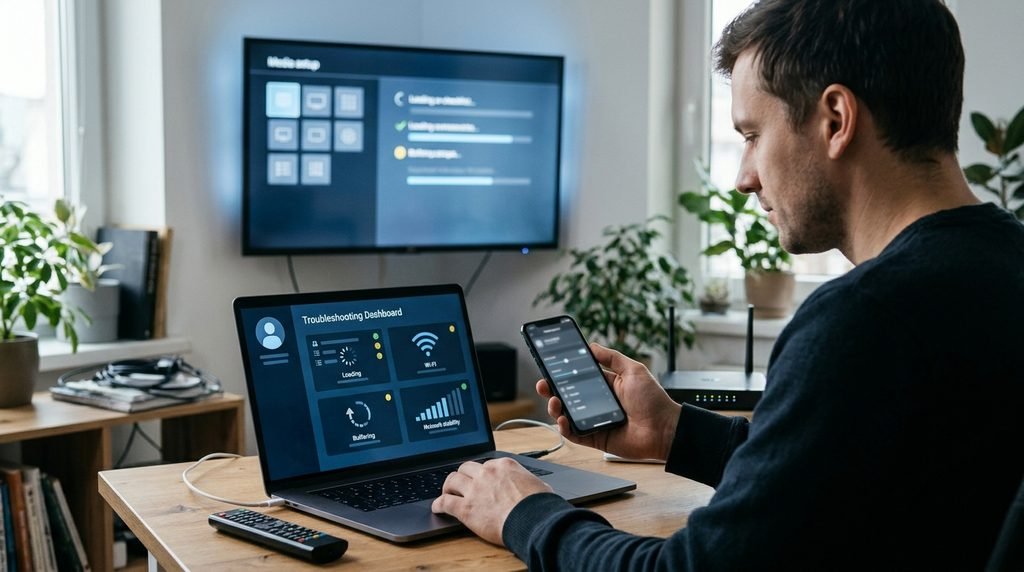
If your app fails to load channels or displays an authentication error, verify that your login details were typed correctly. IPTV portals are case-sensitive. If errors persist, check your internet connection or restart your streaming device to clear temporary cache blocks.
Fixing Buffering and Connection Drops
Buffering is frequently caused by network congestion or Internet Service Provider (ISP) throttling. Using a reliable Virtual Private Network (VPN) can often bypass ISP throttling and stabilize your connection speed. Additionally, clearing your media player’s cache regularly prevents sluggish performance.
Key Takeaway: Regular app maintenance, keeping your player updated to the latest version, and maintaining a stable broadband connection are the three pillars of a flawless streaming experience.
Frequently Asked Questions
Is there an official Apollo TV app?
The service utilizes both companion applications and compatible third-party media players like IPTV Smarters Pro, configured using your subscription credentials.
How do I install the app on FireStick?
Enable sideloading via the Downloader app, enter your download link, install the APK file, and log in with your account credentials.
Why are my channels not loading?
Check your internet connection, verify your Xtream Codes login details, or restart your streaming device and media player.
Can I use the service on multiple devices?
Yes, depending on your subscription tier, you can configure multiple compatible devices, though simultaneous stream limits may apply.
What player is best for Apple TV?
IPTV Smarters Pro and Ibo Player are highly rated, stable options available directly in the Apple TV App Store.
Next Steps
Ready to set up your entertainment system? Visit the official Apollo Group TV homepage to manage your account, review plan options, and get your connection details sorted today.