Apollo IPTV Guide: Features, Setup, and Performance
Published October 26, 2026Updated October 26, 2026By Robert M.
Quick Summary: Understanding Apollo IPTV
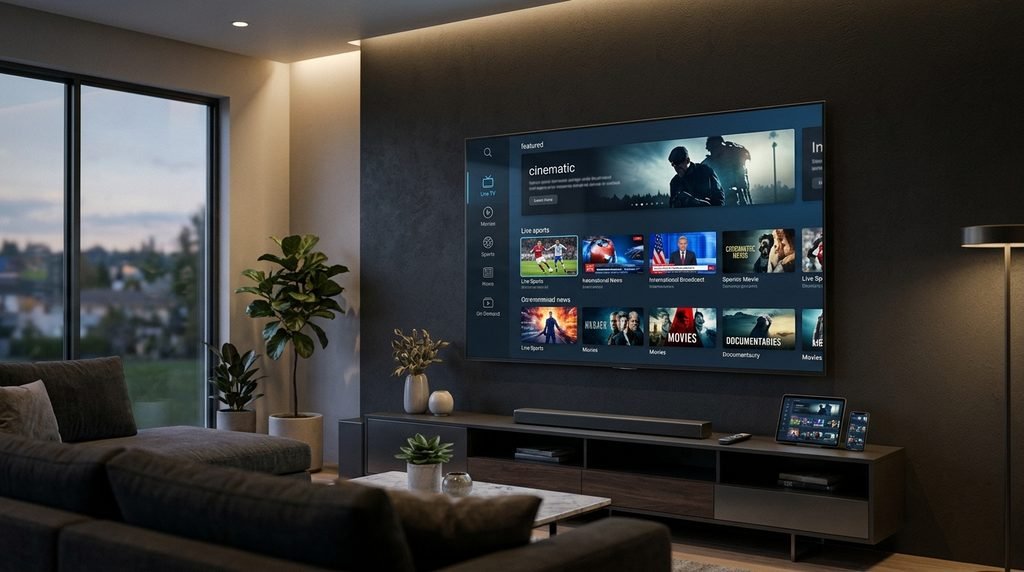
Apollo IPTV refers to the Internet Protocol Television service provided by Apollo Group TV, delivering high-definition live channels, sports broadcasts, and video-on-demand content directly over an internet connection. By bypassing traditional cable or satellite infrastructure, the service provides multi-device accessibility across streaming players, smartphones, and smart TVs. Users access the network via dedicated applications or standard M3U playlists using high-speed broadband connections.
Table of Contents
What Is Apollo IPTV and How Does It Work?
Apollo IPTV operates by transmitting live television channels and video-on-demand catalog items through IP network protocols rather than conventional broadcast signals. Subscribers connect to specialized media servers through an application on their streaming devices, retrieving encrypted stream data converted instantly into video.
+-----------------------------------------------------------------------------------+
|                        APOLLO IPTV DELIVERY WORKFLOW                              |
+-----------------------------------------------------------------------------------+
|  [ Media Servers ] ---> [ IP Network Data ] ---> [ IPTV Player / Startup App ]   |
|         |                                                        |                |
|         v                                                        v                |
|  Live Channels & VOD                                    Decodes Stream Payload     |
|                                                                  |                |
|                                                                  v                |
|                                                       [ HD Video Output on TV ]   |
+-----------------------------------------------------------------------------------+
This streaming framework relies on standard unicast and multicast IP routing. When selecting a channel in the Apollo Group TV interface, your streaming device requests the matching data feed, which processes through a compatible video player engine like VLC or ExoPlayer.
Key Features and Streaming Capabilities
The service delivers high-definition content streams utilizing modern video codecs (H.264 and H.265/HEVC) to optimize image quality while minimizing bandwidth requirements. Features include an Electronic Program Guide (EPG), multi-screen functionality on supported hardware, and custom favoriting lists.
Adaptive Bitrate Streaming: Streams auto-adjust resolution based on detected network speed to reduce buffering.
Electronic Program Guide (EPG): Full interactive TV guide providing schedule data across major networks.
Multi-Connection Options: Simultaneous stream access across multiple household screens depending on active account tiers.
Supported Devices and App Compatibility
Hardware compatibility spans the vast majority of modern streaming equipment. Users can install proprietary client software or use third-party player applications capable of parsing custom Xtream Codes credentials or M3U playlist files.
Key Takeaway: Understanding hardware compatibility ensures your streaming device can decode high-definition feeds efficiently using software like Startup Show or Tivimate.
Apollo Group TV Channel Lineup and On-Demand Library
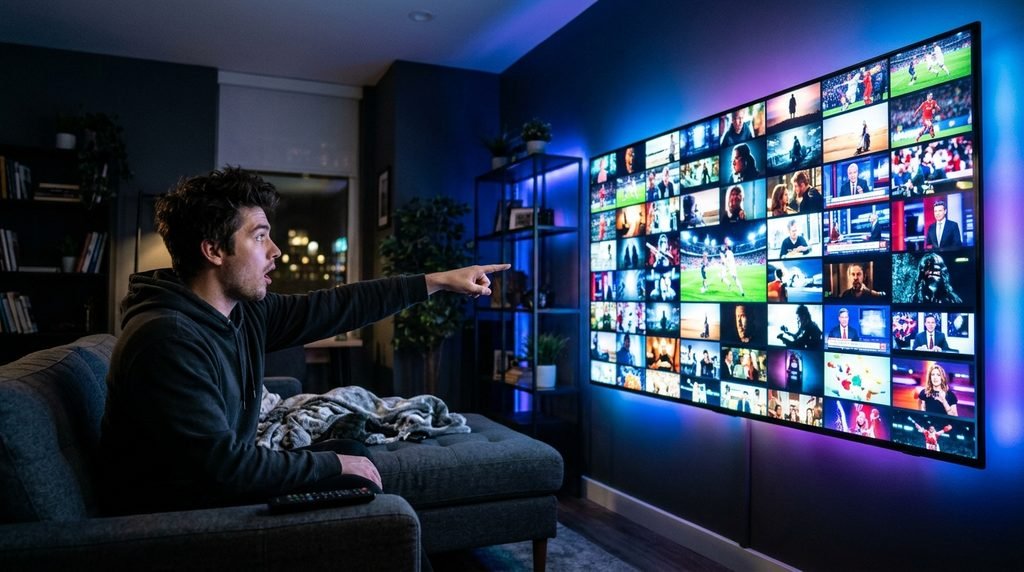
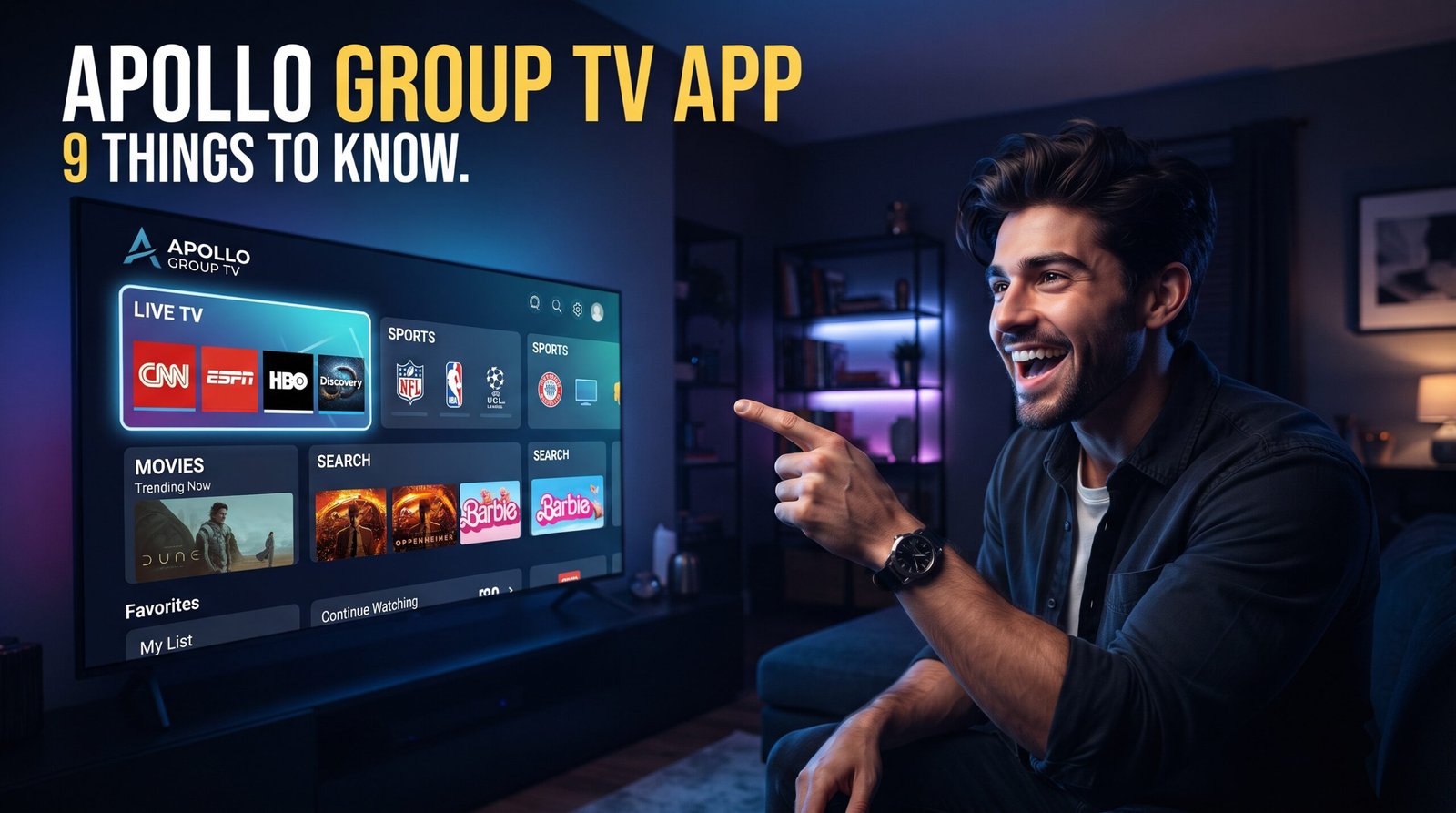
Accessing content on apollo iptv involves choosing between thousands of global live channels and an extensive video-on-demand (VOD) catalog. The platform categorizes channels by geographic region, genre, and event type.
Live TV Coverage and Regional Content
The live channel roster emphasizes United States, Canadian, United Kingdom, and international broadcasting networks. Key channel categories encompass local news affiliates, national entertainment channels, premium movie channels, and dedicated live sports networks.
For comprehensive broadcast schedules and channel availability updates, consult the official Apollo Group TV channel lineup repository.
Video-on-Demand (VOD) Selection
Beyond live television, the VOD architecture provides on-demand movies and full television series. Content updates occur periodically, adding recent cinematic releases and full broadcast seasons accessible directly inside the application menu interface.
Key Takeaway: The content library organizes live broadcasts and VOD into clear regional and thematic categories accessible from a single unified portal.
Apollo IPTV Setup & Installation Guide
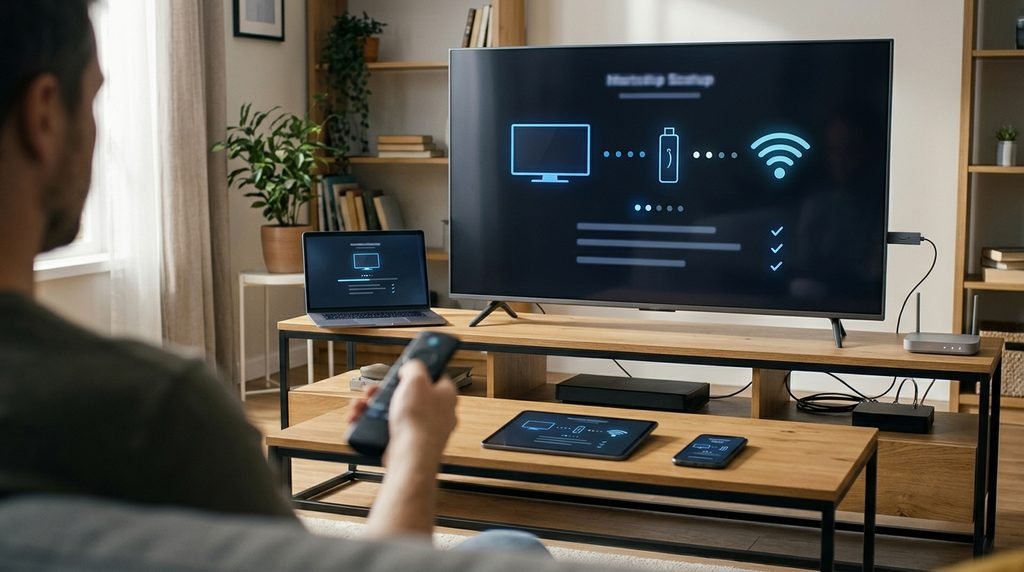
Setting up your subscription requires downloading a supported player app, entering user authentication details, and configuring playback parameters.
+-----------------------------------------------------------------------------------+
|                     APOLLO IPTV INSTALLATION FLOWCHART                            |
+-----------------------------------------------------------------------------------+
| Step 1: Enable Third-Party Apps (Firestick/Android) OR Download Startup Show      |
|                                       |                                           |
|                                       v                                           |
| Step 2: Launch App & Enter Service URL / M3U Playlist Credentials                 |
|                                       |                                           |
|                                       v                                           |
| Step 3: Load Electronic Program Guide (EPG) & Configure Hardware Acceleration      |
|                                       |                                           |
|                                       v                                           |
| Step 4: Complete Connection Verification & Start Streaming                        |
+-----------------------------------------------------------------------------------+
Setting Up on Amazon Firestick and Android Devices
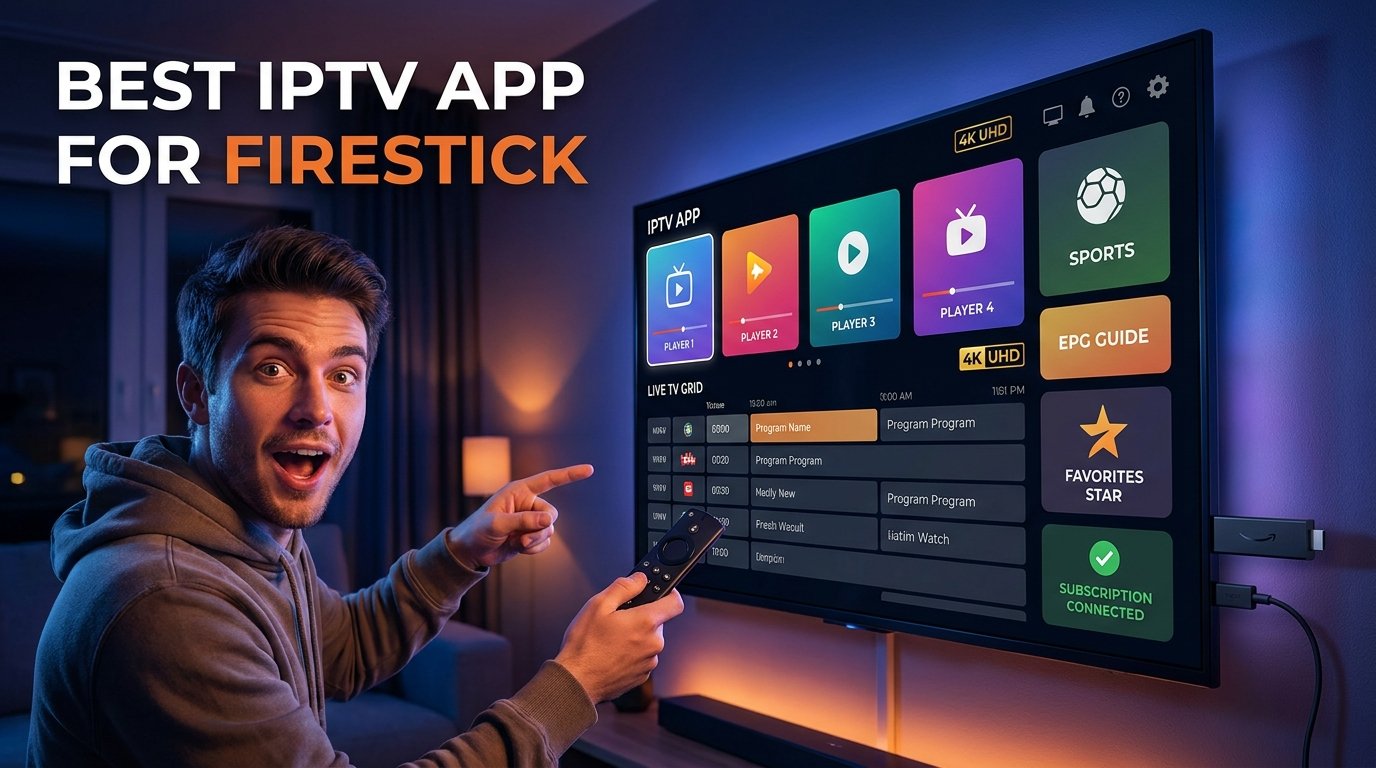
Amazon Fire TV Stick and Android TV boxes represent the most common hardware setups for streaming apollo iptv feeds.
Navigate to Settings > My Fire TV > Developer Options and enable Apps from Unknown Sources (or grant permission to your file downloader app on newer Fire OS builds).
Open the search utility, install the Downloader application, and launch it.
Enter the designated app URL provided in your activation welcome email to download the APK file.
Install the application, open it, and select the login option.
Input your account credentials or standard M3U server details to load the portal.
Configuring IPTV Players on iOS, Smart TVs, and PC
For Apple TV, iOS, or desktop platforms, setup involves third-party players compatible with modern streaming protocols.
iOS / Apple TV: Download Startup Show from the Apple App Store. Launch the application and enter your account portal URL or service keyword when prompted.
Smart TVs (Tizen/webOS): Install an IPTV launcher app like Smart One IPTV or IBO Player from the TV store. Input your account playlist parameters into the application portal.
Desktop PC / Mac: Download VLC Media Player or IPTV Smarters Pro, select Open Network Stream, and insert your network M3U URL.
Key Takeaway: Installation requires downloading a compatible media player application and authenticating with your assigned account portal parameters.
Subscription Plans, Pricing, and Account Management
Understanding service tiers helps users choose appropriate account configurations based on household device demands and billing intervals.
Plan Breakdown and Payment Options
Subscriptions offer full access to live content and VOD, with differences primarily centered around subscription duration and allowed simultaneous streams.
+-----------------------------------------------------------------------------------+
|                        APOLLO IPTV TIER SELECTION MATRIX                          |
+-----------------------------------------------------------------------------------+
|  [ 1-Month Plan ]      [ 3-Month Plan ]      [ 6-Month Plan ]    [ 12-Month Plan ] |
|  - Short-Term          - Mid-Term            - Extended          - Highest Value  |
|  - Up to 5 Devices     - Up to 5 Devices     - Up to 5 Devices   - Up to 5 Devices|
+-----------------------------------------------------------------------------------+
Key Takeaway: Choosing the right account duration depends on household streaming requirements and multi-device connection needs.
Troubleshooting Common Apollo IPTV Connection Issues
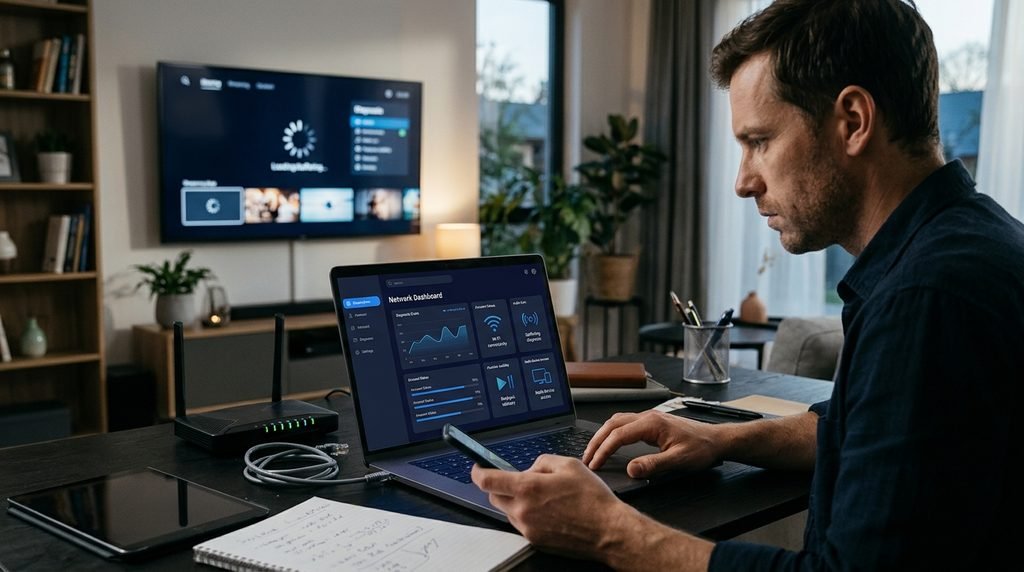
Network bottlenecks, device memory exhaustion, or server maintenance can occasionally disrupt live video feeds. Systematic troubleshooting restores playback stability quickly.
+-----------------------------------------------------------------------------------+
|                      IPTV TROUBLESHOOTING DECISION TREE                           |
+-----------------------------------------------------------------------------------+
| Is your live video feed buffering or dropping connections?                         |
|   |-- YES: Is your connection speed above 25 Mbps on Wi-Fi/Ethernet?              |
|   |     |-- NO: Switch to wired Ethernet or restart broadband modem.              |
|   |     `-- YES: Change hardware decoder in app settings (ExoPlayer <-> VLC).    |
|   `-- NO: Is the EPG or channel list failing to load?                             |
|         |-- YES: Clear app cache or force reload M3U playlist data inside app.    |
|         `-- NO: Verify active service subscription status in dashboard.           |
+-----------------------------------------------------------------------------------+
Resolving Buffering, Freezing, and Audio Sync Errors
Run a Local Bandwidth Check: High-definition streaming requires a consistent 25 Mbps internet download speed per active device.
Clear Application Cache: On Android/Firestick devices, navigate to Settings > Applications > Manage Installed Applications > select your player app and choose Clear Cache.
Switch Media Decoders: Inside app settings, switch the video engine between Hardware (HW) and Software (SW) decoding modes to resolve frame stutter.
Restart Local Hardware: Power cycle your streaming player and network router by unplugging them for 30 seconds to clear temporary memory buffers.
Use Wired Connections: Connect your streaming box directly to your router using an Ethernet cable rather than 2.4 GHz Wi-Fi to lower latency and packet loss.
Key Takeaway: Most playback interruptions stem from local Wi-Fi interference or player cache overload, which simple app setting adjustments and router reboots fix.
Editorial Trust & Evaluation Methodology
Editorial Authority: Prepared by technology writers specializing in digital streaming protocols, IP video infrastructure, and home network optimization.
Evaluation Criteria: Technical analysis focuses on codec support, player application stability, channel changing speeds, EPG accuracy, and network bandwidth overhead.
Information Sources: Official device documentation (Amazon Fire TV, Android TV, Apple tvOS), RFC IP protocol standards, and standard network diagnostic frameworks.
Legal & Content Considerations: Users must comply with local digital rights laws, platform terms of service, and internet service provider usage policies when configuring third-party streaming hardware.
Frequently Asked Questions
What internet speed is needed for Apollo IPTV?
A stable internet connection of at least 25 Mbps is recommended for high-definition streaming. For 4K streams or multi-device households, speeds of 50 Mbps or higher ensure buffer-free playback across all connected screens.
What devices work with Apollo Group TV?
Apollo Group TV supports Amazon Fire TV Stick, Android TV boxes, Apple TV, iOS devices, Android smartphones, Smart TVs (Samsung/LG), and desktop computers using compatible player applications like Startup Show, Tivimate, or VLC.
How do I fix buffering on Apollo IPTV?
To fix buffering, clear your player app cache, restart your internet router, switch from Wi-Fi to a wired Ethernet connection, or change the video decoder setting inside your application options from HW to SW.
Can I use my subscription on multiple devices simultaneously?
Yes, subscriptions support multiple simultaneous streams across different screens within your home network depending on your chosen account plan tier.
How do I set up Apollo IPTV on my Firestick?
To set up Firestick streaming, install the Downloader app, turn on app installations from unknown sources in Fire TV settings, download the compatible player application, and log in with your account credentials.
Next Steps
To begin watching live streams and on-demand entertainment, select your preferred subscription tier on the official Apollo Group TV homepage, complete account activation, and follow the device setup guide above for your streaming hardware.