Apollo TV Login: Portal Sign-In & Streaming Setup Guide
Published October 22, 2026Updated October 22, 2026By Robert M.
To perform an apollo tv login, visit the official account portal at apologrouptv.us to manage subscriptions, or launch your configured player application (such as Startup Show) using the server credentials sent to your registered email. Ensure you use your primary account email for billing management and your designated M3U/Xtream playlist details for player app authentication.
Table of Contents
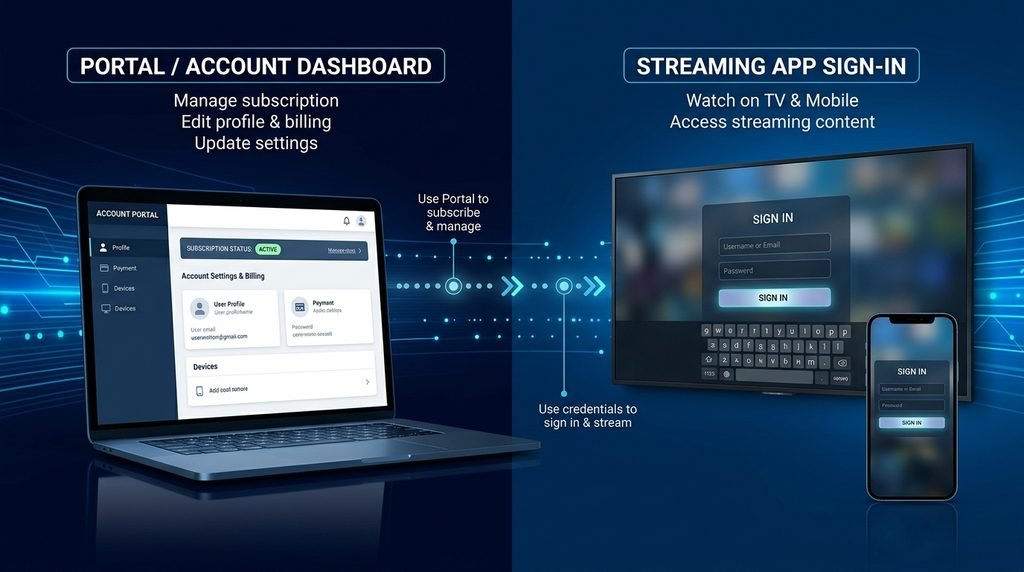
Apollo Group TV Portal vs. Streaming App Sign-In
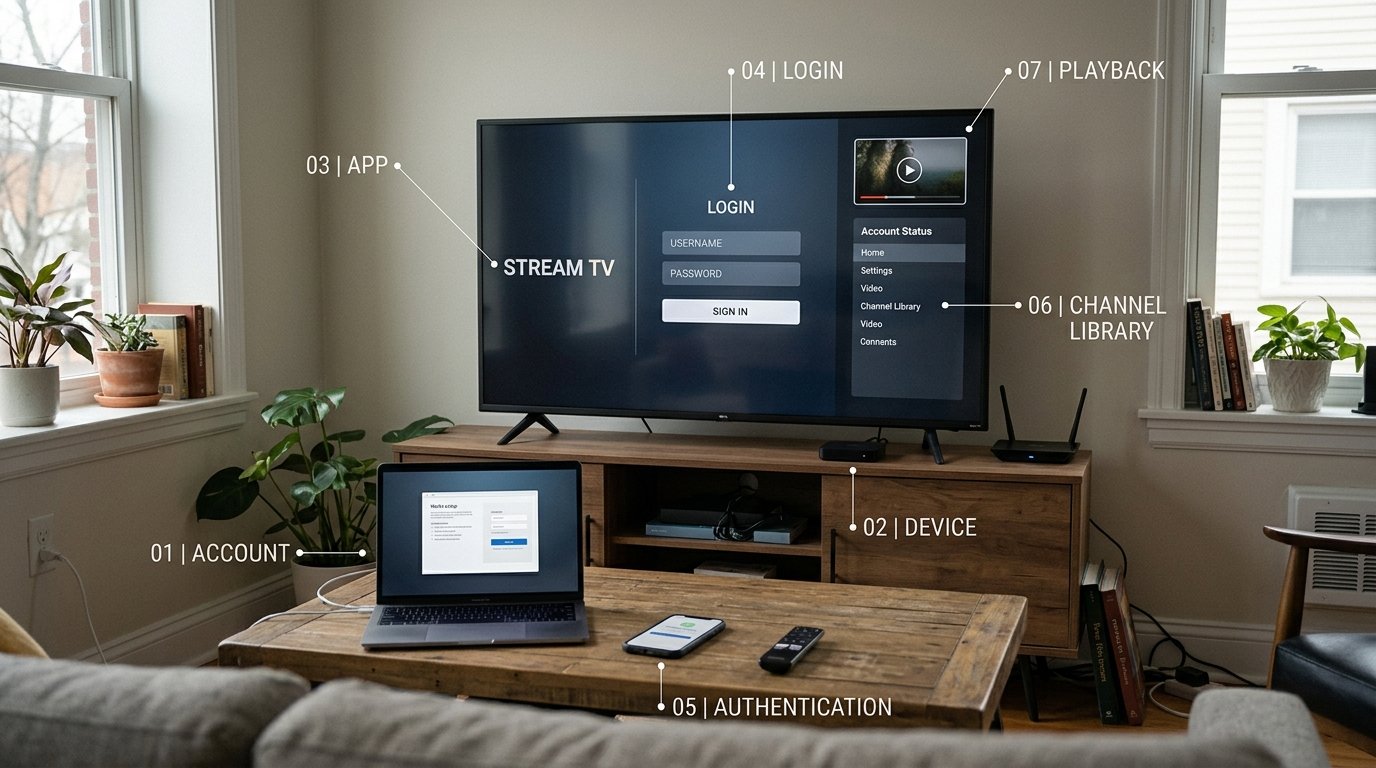
Understanding the distinction between dashboard management and active streaming playback prevents login confusion.
                          ┌──────────────────────────┐
                          │   Apollo Group TV User   │
                          └────────────┬─────────────┘
                                       │
                    ┌──────────────────┴──────────────────┐
                    ▼                                     ▼
        ┌───────────────────────┐             ┌───────────────────────┐
        │   Web Billing Portal  │             │   Streaming App / TV  │
        │  (apologrouptv.us)    │             │  (Startup Show / Web) │
        └───────────┬───────────┘             └───────────┬───────────┘
                    │                                     │
         Uses Account Email &                    Uses Server URL &
           Account Password                     Playlist Credentials
                    │                                     │
                    ▼                                     ▼
        Manage Subscription &                 Watch Live TV Channels
         Invoice Information                   & On-Demand Content
1. Official Account Dashboard Login
The account dashboard is designed strictly for account maintenance. Here, subscribers can review active plan statuses, check expiration dates, process manual renewals, and raise support tickets.
2. IPTV Application Sign-In
To stream live sports, movies, and TV broadcasts, users enter server-specific details inside player apps like Startup Show or compatible M3U applications. These credentials are created upon plan activation and sent via welcome confirmation emails.
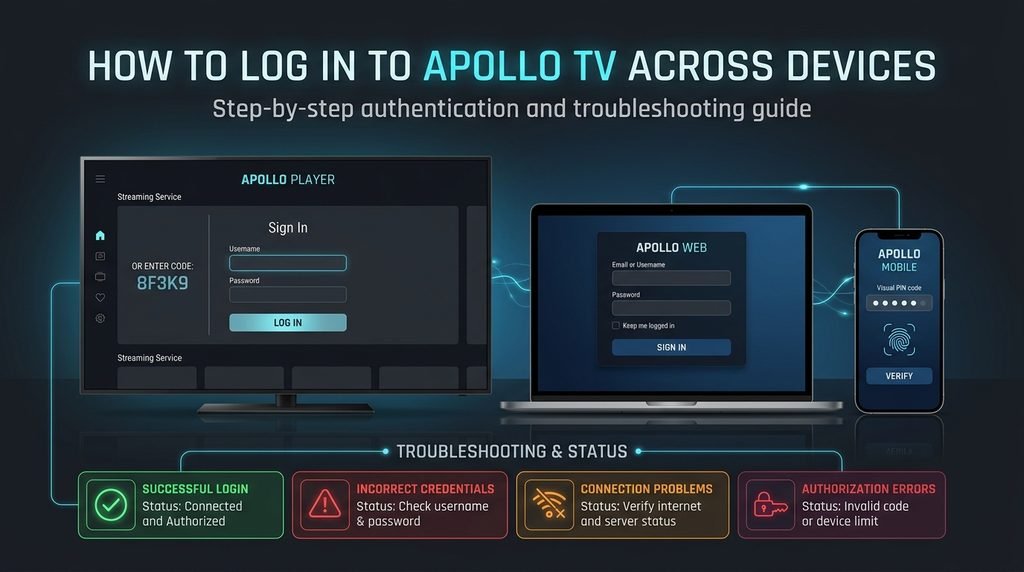
How to Perform an Apollo TV Login Across Devices
Follow these structured steps to complete your sign-in process on mobile devices, smart TVs, or desktop screens.
Logging In via Startup Show App
The Startup Show application provides optimized playback across Firestick, Android, iOS, and Smart TV platforms.
Open the Startup Show app on your chosen device.
When prompted for server credentials, select M3U Playlist or Xtream Codes.
Enter your dedicated server URL alongside your assigned username and password provided at registration.
Select Submit or Log In to authorize the device and fetch channel playlists.
Logging In via Web Player
Desktop computer users can stream directly through a standard web browser without installing additional local applications.
Open a modern browser like Google Chrome or Apple Safari.
Navigate to the official web player portal.
Input your assigned credentials into the login fields.
Click Sign In to open the channel guide, VOD titles, and account profile controls.
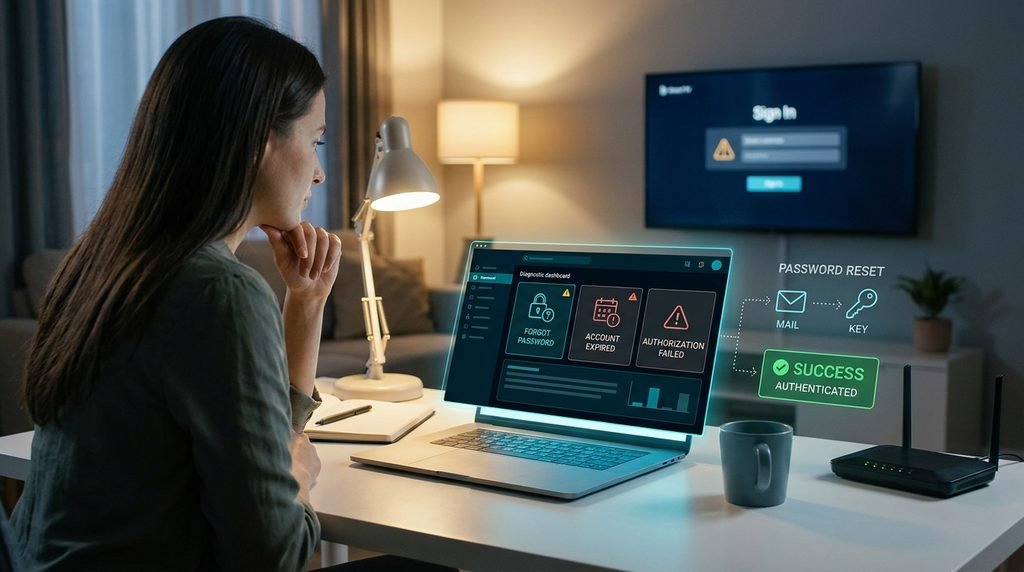
Click the Forgot Password link beneath the login fields.
Enter your registered account email address.
Open the automated password reset email, click the verification link, and specify a new secure password.
Note: Password resets update your web account dashboard access. App playlist passcodes remain unchanged unless reset via account settings.
Fixing Account Expired or Authorization Failures
An authorization failure inside player apps often indicates an unpaid or lapsed subscription term. Log into your account dashboard to check your active billing cycle status. If your membership has lapsed, review available packages on the subscription page to reactive full access.
Editorial Trust & Verification Policy
Methodology & Editorial Transparency
This guide is prepared through systematic analysis of official service documentation, user account dashboard structures, and standardized streaming client interfaces. Content is reviewed periodically to ensure accuracy across web browsers and supported device apps.
Last Updated: October 18, 2026.
Frequently Asked Questions
Where do I log in to my Apollo Group TV account?
Log in to your account dashboard on the official website apologrouptv.us to manage subscriptions and invoices.
Are my portal login details the same as my app login details?
Not always. Dashboard login uses your email and account password, while app sign-ins use playlist/server credentials sent in your activation email.
What should I do if I forget my login password?
Click the “Forgot Password” link on the portal page, enter your email, and follow the recovery link sent to your inbox.
Why does my login say “Authorization Failed” inside the app?
This error usually indicates an expired plan term or a typo in the server URL or passcode. Verify your status on the dashboard.
Can I log into my account on multiple devices simultaneously?
Yes, account plans support up to 5 concurrent streams across supported screens and mobile devices.
Next-Step Action Plan
If you need to reactivate an expired account or explore available plan extensions, visit the Apollo Group TV pricing page to review packages. For continuous playback across home and mobile displays, check the full channel lineup or contact technical help desk support through your dashboard portal.