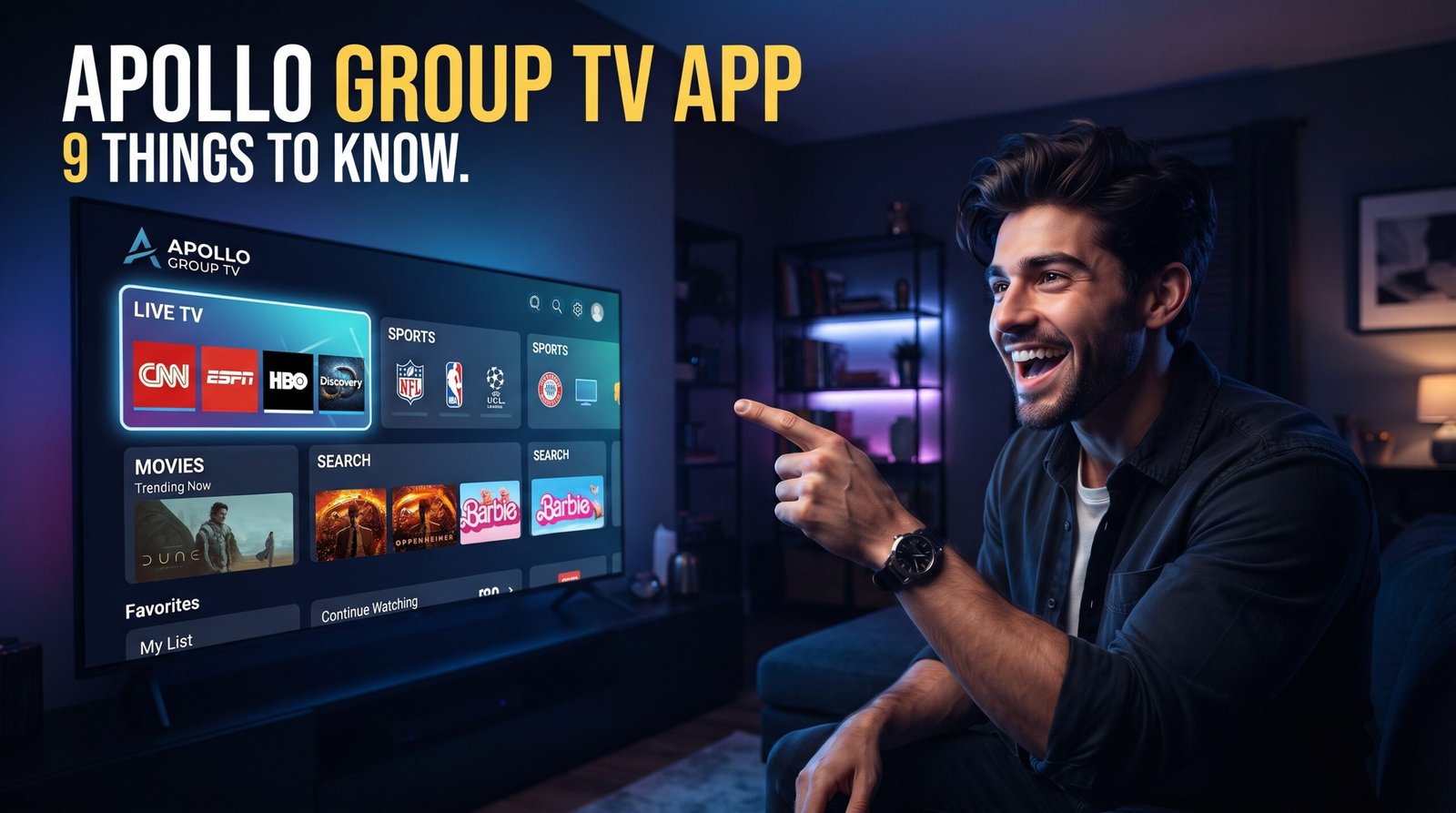
Apollo Group TV Downloader Code (2026 Setup Guide)
Published October 20, 2026Updated October 20, 2026By Robert M.
Table of Contents
Introduction
Navigating device setup for modern streaming services can sometimes feel complex, but setting up your entertainment hub has been streamlined. If you are looking for the official apollo group tv downloader code, you are in the right place to get your device configured efficiently. Utilizing the Downloader application by AFTVnews is the fastest, most reliable method to sideload and run compatible client apps on Amazon Fire TV and Android-powered hardware.
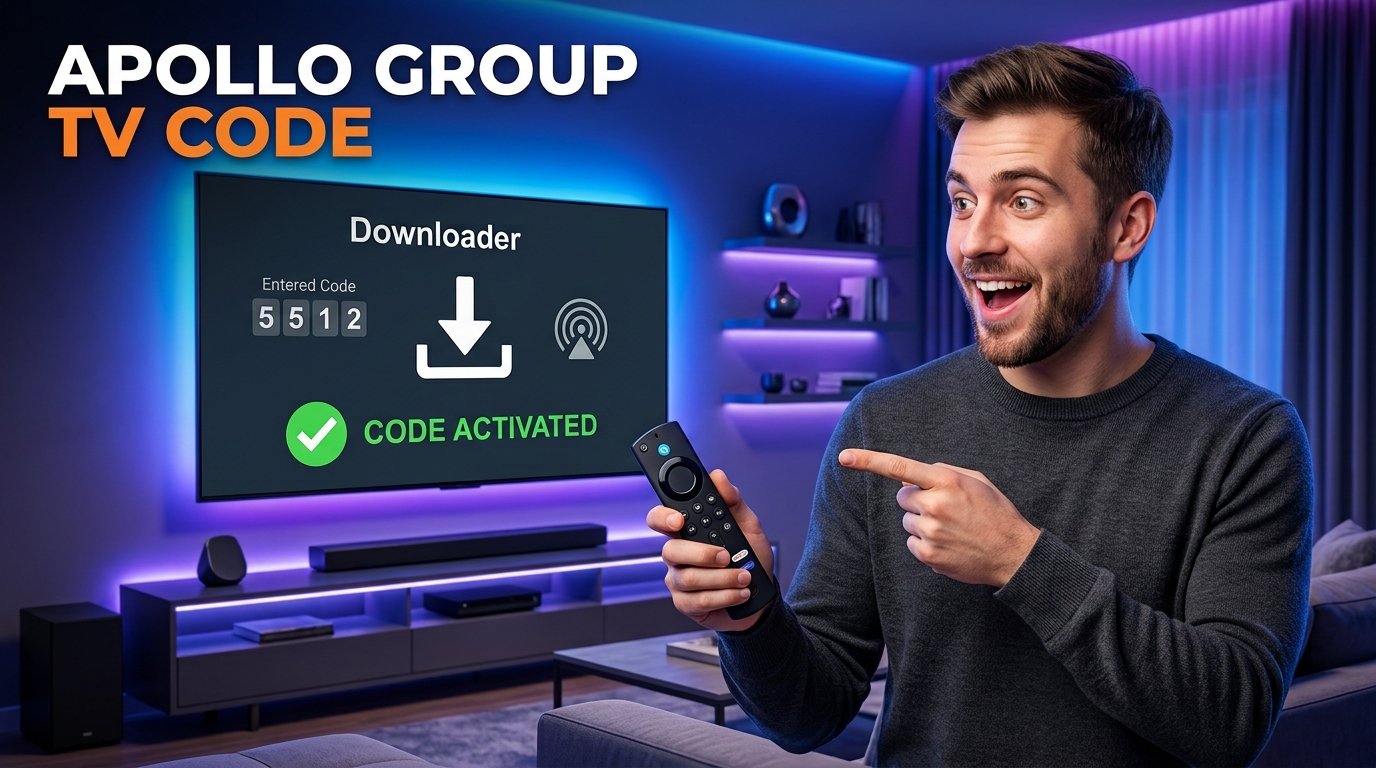
Quick Answer: The active downloader code for installing the official Apollo Group TV companion application (Startup Show) on Firestick and Android devices is 257276. Open the Downloader app, input this code into the URL field, and follow the prompts to install the application.
What is the Apollo Group TV Downloader Code?
What is the Apollo Group TV downloader code and why is it necessary? The downloader code is a numeric shortcut created to bypass long, complicated web URLs when downloading apps onto Amazon Fire TV Sticks or Android TV boxes. Instead of typing a lengthy web address with a standard remote control, entering a short numeric code instantly points the Downloader application to the correct installation file. For users of Apollo Group TV, this code fetches the lightweight Startup Show platform, designed specifically to deliver smooth navigation, rapid channel loading, and reliable performance across supported devices.
Prerequisites Before Using the Downloader Code
What prerequisites are required before entering the code? Preparation ensures a seamless installation process without unexpected error prompts or storage blocks. Before you begin typing numbers into your remote, verify that your hardware meets a few baseline requirements:
Storage Space: Ensure your Firestick or Android streaming device has at least 1 GB of free internal storage available. Low storage frequently causes installation files to fail silently or throw parsing errors.
Stable Internet Connection: Connect your streaming device to a reliable Wi-Fi network to prevent download interruptions.
Active Subscription: Have your account details or active configuration link ready so you can sign in immediately after the app installs.
Step-by-Step Guide: Installing via Downloader
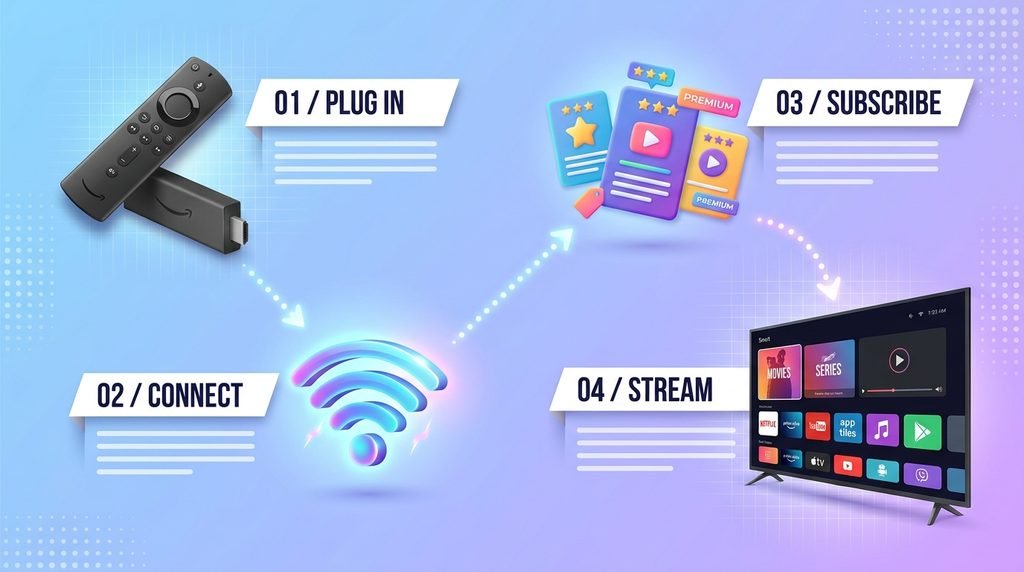
How do you use the downloader code on an Amazon Firestick? Follow these sequential instructions carefully to download, install, and configure the application on your hardware.
Step 1: Install the Downloader App
Turn on your Amazon Fire TV device, navigate to the home screen, and select the Search or Find icon. Type the word “Downloader” using the on-screen keyboard. Choose the orange Downloader app icon developed by AFTVnews, select Download or Get, and wait for the installation to finish.
Step 2: Enable Unknown Sources
Because sideloaded apps require permission to install outside of the official Amazon Appstore, you must unlock Developer Options. Go to Settings > My Fire TV > About. Click your device name (such as Fire TV Stick) 7 times until a message appears stating “No need, you are already a developer.” Press back, open the newly visible Developer Options, turn on ADB Debugging, and click Install Unknown Apps to turn access ON for the Downloader application.
Step 3: Enter the Apollo Group TV Downloader Code
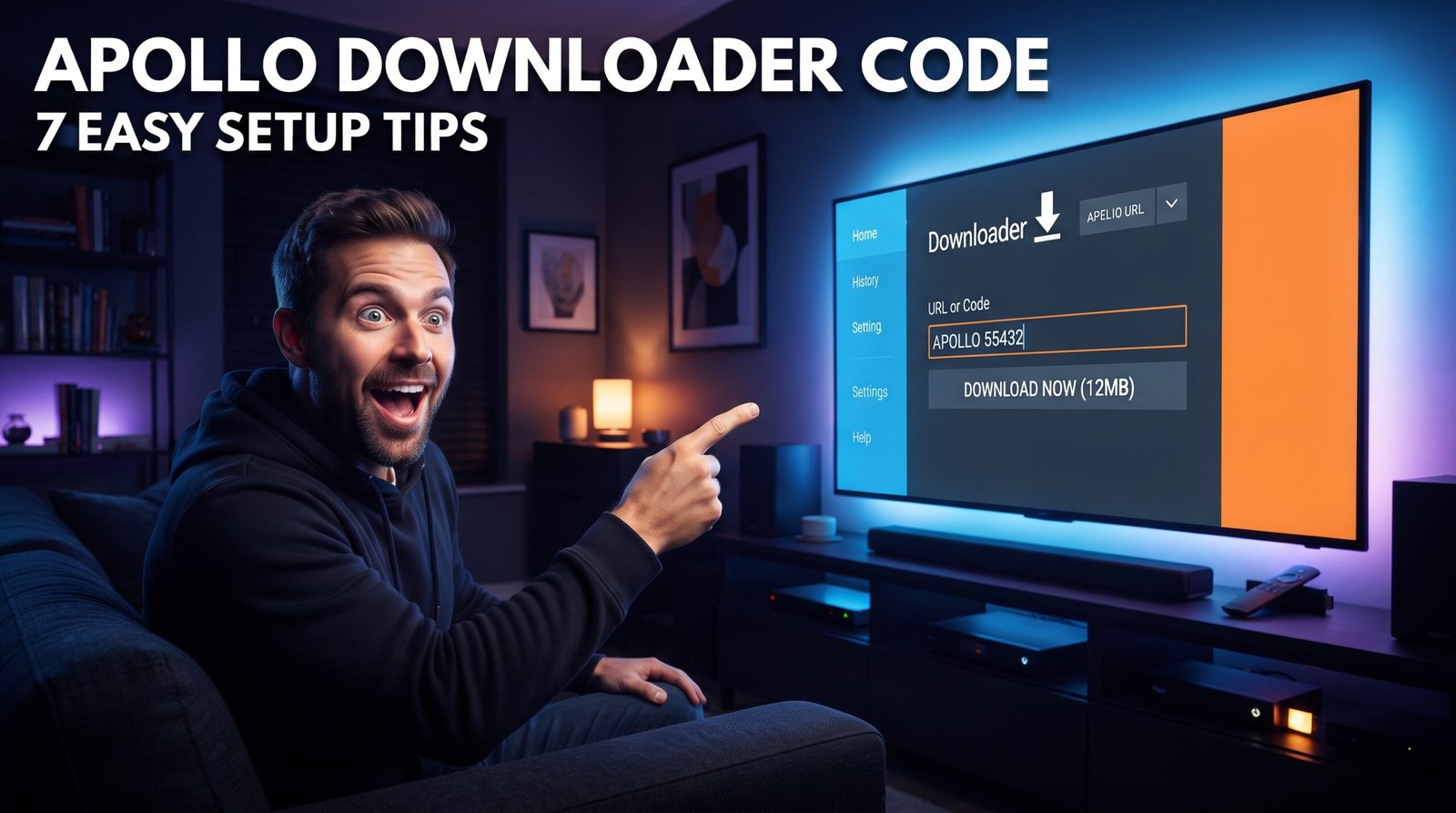
Launch the Downloader application from your app list. On the main Home tab, click inside the URL input box to bring up the on-screen keypad. Type the official code: 257276. Double-check the digits to ensure accuracy, then select the Go button.
Step 4: Install and Open Startup Show
The Downloader tool will connect to the secure file repository and download the installation package. Once the download finishes, a system prompt will appear on your screen. Select Install. After the installation completes, click Done or Open. For easy access later, highlight the newly installed app on your home menu, press the menu button (three horizontal lines) on your remote, and select Move to Front.
How to Sign In and Activate Your Account
How do you access your media library after installation? Once the Startup Show application is running on your device, you will be prompted to log in using your account credentials or playlist link.
Launch the app from your device dashboard.
Choose the option to enter your M3U Link or login credentials.
Input your unique connection parameters accurately (typically formatted as provided in your welcome dashboard).
Confirm the details to populate your live TV guide, channel list, and on-demand library.
For more information regarding available packages and account management, you can review the official pricing plans or explore the comprehensive channel lineup. If you are setting up your service for the first time, visiting the main portal at Apollo Group TV can help guide your initial setup.
Troubleshooting Common Downloader Issues
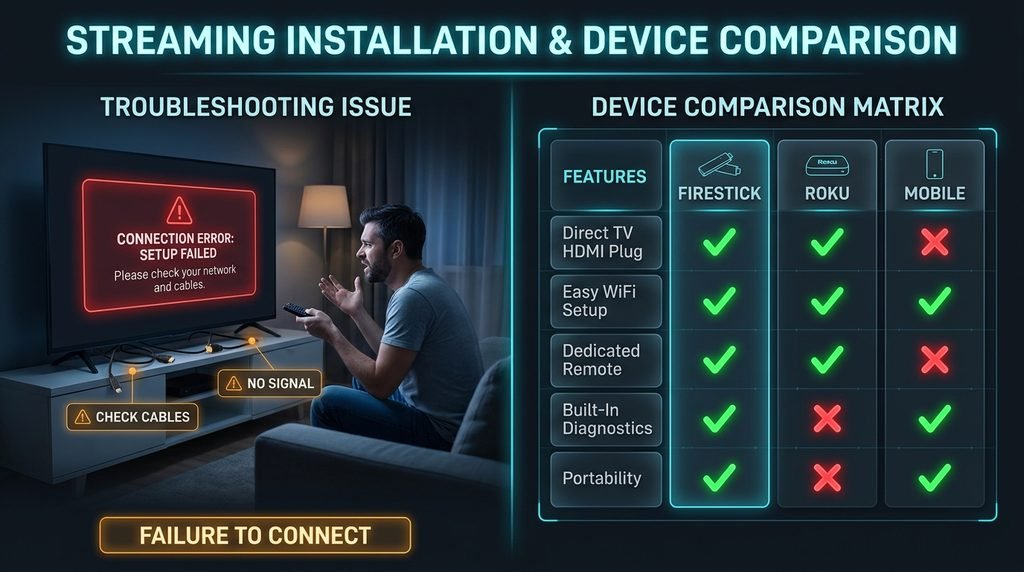
What should you do if the download fails or returns an error message? While the process is straightforward, occasional network hiccups or permission blocks can occur. Review these practical troubleshooting solutions:
Parsing Error: If a parsing error occurs, it usually means the download was cut short or your device lacks storage space. Clear out unused applications to free up at least 1 GB of space and try downloading again.
Connection Timeout: If the code fails to resolve or connect, check your Wi-Fi connection or restart your router.
Blocked Installation: Verify that Developer Options and Unknown Apps permissions are explicitly toggled on for the Downloader app in your Fire TV settings menu.
Comparison of Supported Streaming Methods
Method
Device Type
Ease of Use
Primary App Used
Downloader Code
Amazon Firestick / Fire Cube
High (Fastest)
Startup Show
Direct Browser APK
Android TV Boxes / Phones
Medium
Startup Show / Custom APK
M3U / Web Portal
Smart TVs / PC Browsers
Moderate
Compatible Media Players
Frequently Asked Questions
What is the exact Apollo Group TV downloader code?
The working downloader code for the official Startup Show app is 257276. Entering this number into the Downloader app automatically fetches the installation package.
Is the Downloader app free to use?
Yes, the Downloader app by AFTVnews is completely free to download and use from the official Amazon Appstore on your Firestick.
Why is my Firestick blocking the installation?
Amazon Fire TV devices block third-party apps by default for security. You must enable Unknown Apps permissions for Downloader inside your Developer Options.
Do I need an active subscription before using the code?
Yes, you need active account credentials or an M3U link to sign in and stream content after the application has been successfully installed on your device.
Can I use this code on a Roku device?
No, Roku devices do not natively support sideloading or the Downloader application. This method is intended for Amazon Fire TV and Android TV devices.
Next Steps
Now that you have successfully utilized the apollo group tv downloader code to configure your streaming device, ensure your account is fully optimized by reviewing your service preferences or managing your active profile directly through the Apollo Group TV subscription portal.