Apollo Group TV Installation: 9 Proven Setup Steps
Published October 13, 2026Updated October 13, 2026By Robert M.
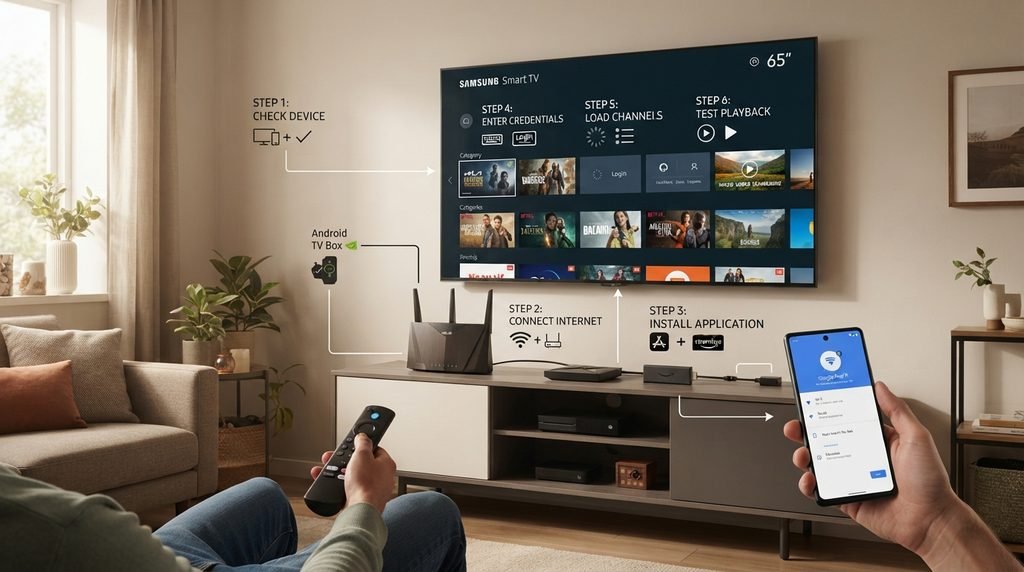
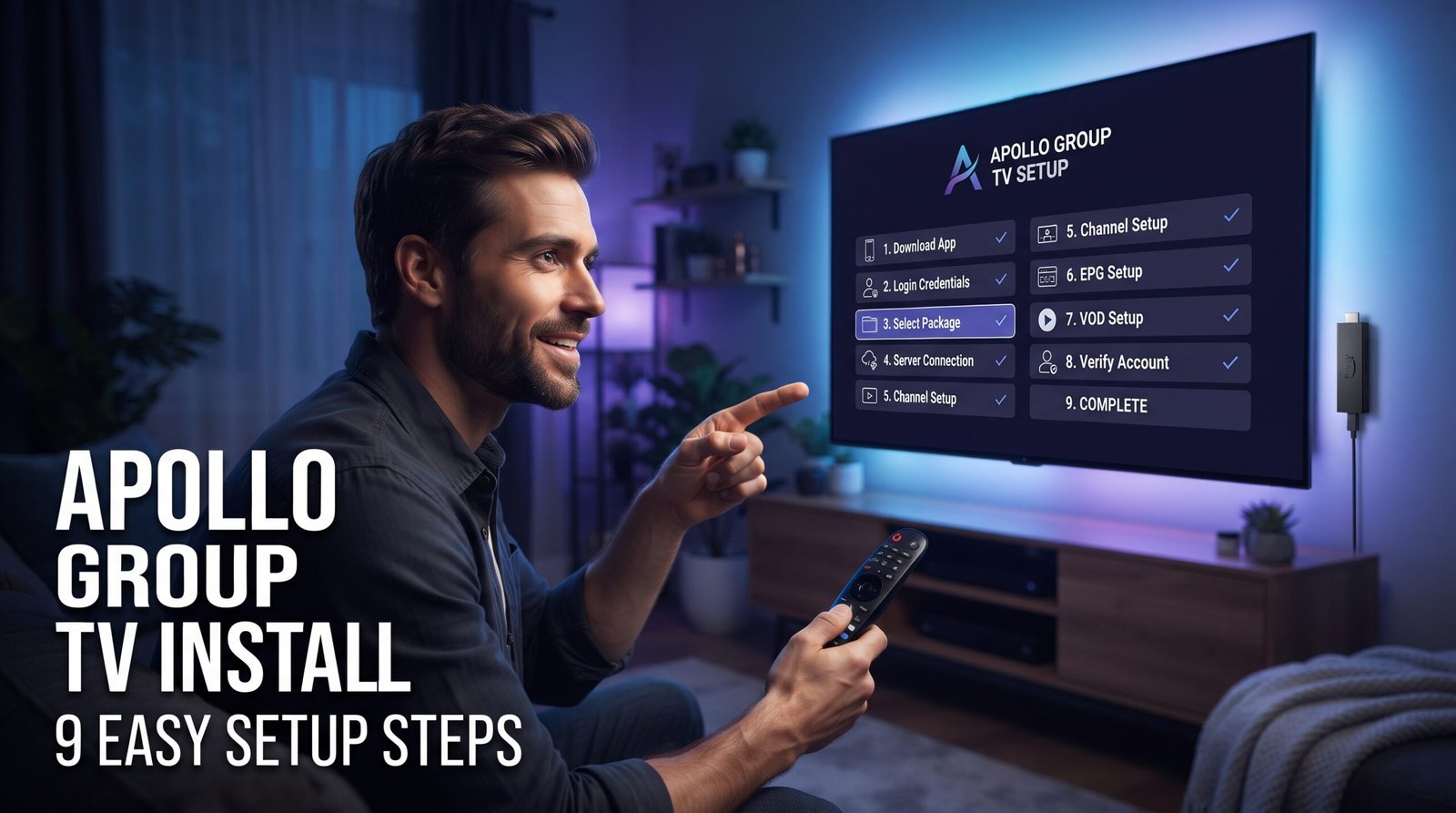
Apollo Group TV installation becomes much easier when you stop thinking of it as “download an app and hope it works.” A complete setup has several checkpoints: identify the device, confirm the network, install a compatible player, enter the correct subscription information, let the content library load, and then verify that live channels actually play. If one checkpoint fails, the fix depends on that exact stage. A Firestick that cannot install an application has a different problem from a Smart TV that opens the player but rejects the login, and both are different from a working account that buffers during playback.
This Apollo Group TV installation guide is built as a decision tree rather than another long device-by-device checklist. Start with the platform you own, follow the branch that matches it, and only move into troubleshooting if the setup fails at a specific point. That approach prevents the common mistake of reinstalling everything because one channel buffers or changing network settings when the real problem is a mistyped password. If you want the site’s dedicated device instructions while working through the process, keep the Apollo Group TV installation guide open as a reference.
Table of Contents
Apollo Group TV Installation: Use This Setup Map First
Before touching any settings, decide which stage you are actually at. Apollo Group TV installation has four broad layers: the device and operating system, the player application, the subscription account, and the network that carries the streams. The installation is successful only when all four work together. This is why copying a tutorial for the wrong television or assuming every Smart TV can install an Android APK creates problems before the account is even involved.
Stage
What Should Happen
If It Fails
Platform check
You know the exact device and operating system
Stop and identify the model/OS before installing
Player install
A compatible app installs and opens
Check compatibility, storage, and install source
Account login
The player accepts the subscription details
Recheck credentials, account status, and login method
Library load
Channels, VOD, or guide data appear
Allow synchronization and check connectivity
Playback test
Several live channels play normally
Troubleshoot stream, network, player, or device
Use this map throughout the Apollo Group TV installation process. If the application does not open, there is no reason to troubleshoot the EPG yet. If the player opens and accepts the account but one stream fails, the installation itself is probably already complete. Working in order makes every later fix more accurate.
Stage 1: Identify the Platform Before You Install Anything
The most important first decision in Apollo Group TV installation is the operating system, not the logo on the television. Two screens can both be called Smart TVs while using completely different software. Samsung televisions commonly use Tizen, LG televisions use webOS, many Sony and TCL models use Android TV or Google TV, Firestick uses Fire TV, and phones or computers have their own app ecosystems. Those differences determine which players can be installed and whether sideloading is even relevant.
An Android APK, for example, belongs to Android-based systems. It should not be treated as a universal file for Samsung, LG, iPhone, or every other Smart TV. Before beginning Apollo Group TV installation, open the device settings and confirm the model and operating system. Once you know the platform, use instructions designed for that environment only. This one step eliminates a large number of unnecessary Apollo Group TV installation failures.
Device Family
Typical Install Path
Main Check
Firestick / Fire TV
Compatible app or supported sideloading route
Storage and installation permissions
Android TV / Google TV
Android-compatible player
App availability and Android version
Samsung Smart TV
Tizen-compatible IPTV player
App availability in Samsung environment
LG Smart TV
webOS-compatible IPTV player
App availability in LG environment
Android phone/tablet
Android IPTV player
Storage and permissions
iPhone/iPad
iOS/iPadOS-compatible player
App Store compatibility
Windows/Mac
Compatible desktop or browser-based player
Correct login format
Branch A: Firestick, Fire TV, Android TV, and Google TV
Fire TV and Android-based devices are popular for Apollo Group TV installation because they usually offer a wider choice of compatible IPTV players than some closed Smart TV platforms. Start with the normal application store whenever the recommended player is available there. That is the simplest route because installation, updates, and compatibility are easier to manage. If the current device-specific instructions require another method, follow only the trusted route provided for that setup rather than downloading random files from search results.
On Firestick, check storage before installation. Devices that are nearly full can fail during app installation or become sluggish after the player begins loading a large channel library. Restarting the device can also clear temporary memory issues. If Apollo Group TV installation requires a downloader utility or permission to install an application from another source, enable only the permission needed for the app you intentionally use. Do not permanently disable unrelated security protections just because an old tutorial tells you to.
A Clean Firestick Installation Order
Connect the Firestick to the network you actually plan to use.
Confirm there is enough free storage.
Open the current device-specific setup instructions.
Install the recommended player or downloader utility.
Enable only the required installation permission if sideloading is necessary.
Install the intended application from the trusted source.
Open the player before changing advanced settings.
Enter the subscription details exactly as supplied.
Allow the content library to finish loading.
Test several live channels before changing anything else.
Once the player opens, authenticates, loads content, and plays multiple streams, Apollo Group TV installation on Firestick is essentially finished. If later playback is poor, that becomes a network, player, device, or stream problem rather than proof that the app was installed incorrectly.
Branch B: Samsung and LG Smart TVs
Samsung and LG need a different Apollo Group TV installation mindset because their built-in operating systems are not Android. A Samsung television commonly uses Tizen, while LG uses webOS. That means an APK that works on an Android box or Fire TV should not be expected to install directly on these televisions. The correct approach is to look for a compatible IPTV player available for the television’s own platform and then connect your subscription through that player.
If the television does not offer the player or setup method you want, an external Firestick, Google TV device, or Android TV box can sometimes be simpler than trying to force unsupported software onto the TV. That is not a requirement for every Smart TV, but it is a useful fallback. Apollo Group TV installation should adapt to the operating system you actually have rather than turning the television into a platform it was never designed to be.
Branch C: Phones, Tablets, Windows, and Mac
Mobile devices and computers are useful not only for watching but also for diagnosis. On Android, use an Android-compatible IPTV player. On iPhone or iPad, use an application designed for iOS or iPadOS; an Android APK cannot simply be converted into an iPhone application. On Windows or Mac, use a compatible desktop player, browser method, or other supported option that accepts the login format supplied with the subscription.
A second device can answer an important Apollo Group TV installation question. If the same account works on a phone or computer but fails on the television, the subscription is probably active and the original device or player deserves more attention. If the account fails everywhere using the same credentials, the problem is more likely related to authentication, activation, or the account information itself. This comparison is often faster than reinstalling the television app repeatedly.
Stage 2: Prepare the Network and Account Before Login
Before entering any subscription details, confirm that the streaming device has a stable internet connection. Apollo Group TV installation can be technically correct while the app still appears broken because the device has weak Wi-Fi or unstable connectivity. Open another streaming application on the same device and let a video play for several minutes. Testing only from a phone is not enough because the phone may have stronger Wi-Fi reception or may switch to mobile data without you noticing.
If the connection looks unstable, restart the router and the streaming device before moving deeper into Apollo Group TV installation. Ethernet can be useful when supported because it removes wireless signal strength and interference from the equation. Wi-Fi can also work perfectly well when the signal is strong, but Firestick users should remember that the device sits behind the television, where placement can sometimes reduce reception. If playback later improves on Ethernet, the local network becomes a stronger suspect than the account.
Subscription Information Is a Separate Layer
Payment, activation, installation, and playback are not the same event. Installing a player does not create a subscription, and paying for a subscription does not configure the television automatically. Keep the account information associated with the subscription available before Apollo Group TV installation reaches the login stage. If you are still choosing a plan, review the current Apollo Group TV pricing options first so you understand what subscription you are connecting to the player.
Enter the username, password, server information, playlist details, or other credentials exactly as provided. Capitalization, punctuation, and accidental spaces can matter. If copied text fails, try entering the information manually. Apollo Group TV installation should not move into DNS changes, VPN testing, or app replacement until simple authentication errors have been ruled out.
Stage 3: Install the Player Without Creating a Security Problem
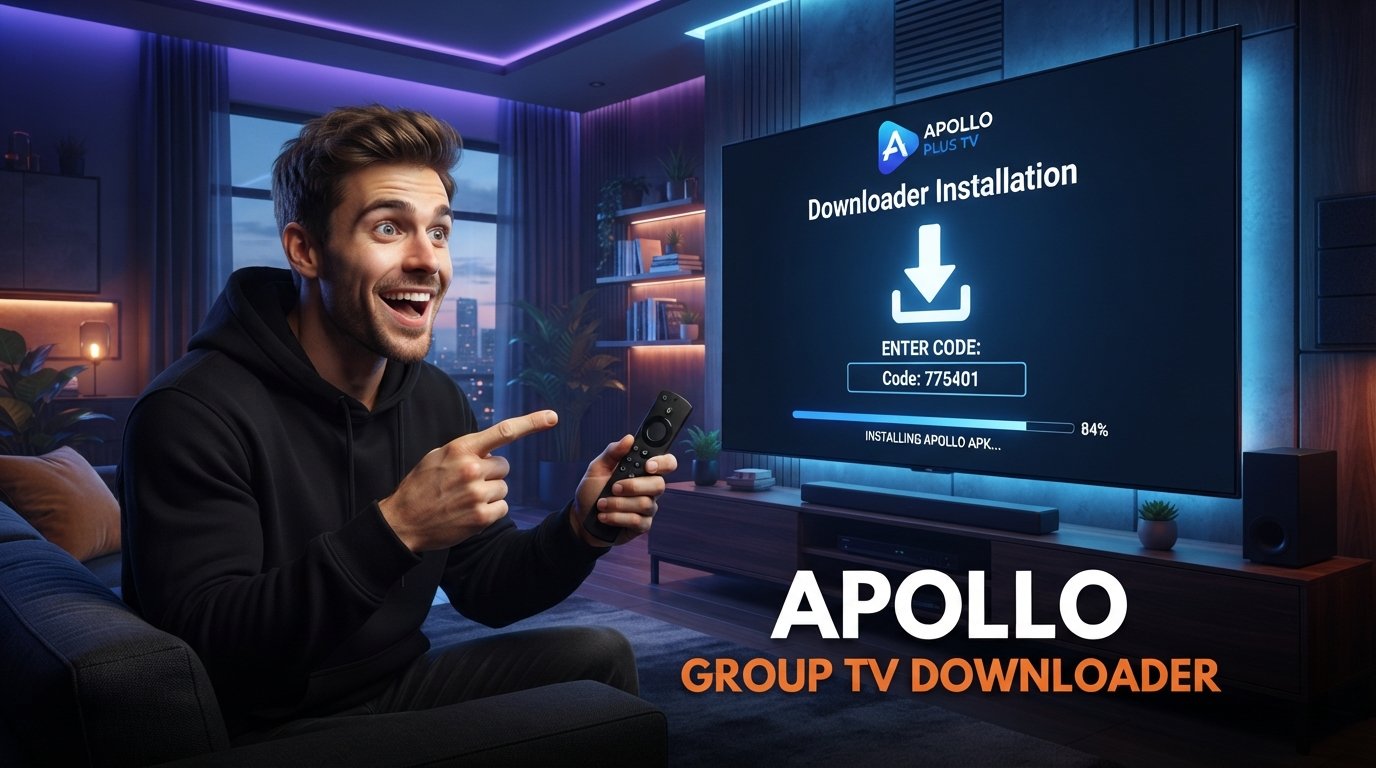
The application source matters during Apollo Group TV installation. If a compatible player is available through the device’s normal application store, that route is usually easier to maintain. When a supported sideloading method is required, use the current URL, file, or downloader information supplied through the setup route you trust. A downloader code is only a shortcut to a destination; the code itself does not prove that the downloaded file is authentic or current.
Do not search for a random “Apollo APK” and install the first file that appears. Modified or outdated packages can create crashes, compatibility problems, or permissions you did not expect. Apollo Group TV installation should use the correct player for the platform, not simply any file containing the Apollo name. If a device asks for permission to install from an outside source, grant that permission only to the utility involved in the specific installation and keep the rest of the device protections intact.
Stage 4: Connect the Subscription and Let the First Load Finish
After the player is installed, open it and choose the login method that matches the account information you received. Do not guess between portal, playlist, or username-and-password methods if the provider has already told you which one to use. Apollo Group TV installation can fail at authentication even when the app itself is installed perfectly, which is why the exact login method matters as much as the credentials.
Once the account is accepted, the first synchronization may take longer than normal daily use. Large IPTV libraries can include live channels, movies, series, logos, categories, and EPG data. Give the application time to finish loading before repeatedly closing it. If the library appears, create a small favorites list later, but do not immediately change advanced player settings. First prove that the default Apollo Group TV installation can actually play content.
Stage 5: Prove the Installation Works Before You Call It Finished
The app opening is not enough. A proper Apollo Group TV installation verification should confirm that authentication succeeds, categories load, and more than one stream plays. Use the Apollo Group TV channel list to identify content you expect to see, then test several different categories. One unavailable channel can be a temporary feed problem and should not be mistaken for a complete installation failure.
Open a few live channels, switch between categories, check audio and video synchronization, leave one stream running for a meaningful period, and confirm that the remote or controller navigates the player properly. If sports or international channels are important, include them in the test. Restart the app once and confirm that the account remains configured. When those checks pass, Apollo Group TV installation is complete and any later issue should be diagnosed as a separate playback or account problem.
Verification Check
What a Successful Result Tells You
App opens normally
The player installed correctly
Login succeeds
The account and login method are accepted
Categories load
The player can retrieve the library
Several channels play
Playback is functioning beyond one isolated feed
App survives a restart
The configuration was saved
Second device also works
The account itself is probably healthy
Failure Branch 1: The App Will Not Install or Open
If Apollo Group TV installation stops before the login screen, focus on the application and device rather than the subscription. Check whether the player is actually designed for the operating system, whether enough storage is available, and whether the downloaded file completed correctly. Restart the device before deleting anything. Older Firesticks and Android boxes can take longer to install or open applications when storage is nearly full.
If the app installs but closes immediately, device compatibility, limited memory, corrupted app data, or an outdated package can be responsible. Repeating Apollo Group TV installation with several unrelated APK versions from random download pages can make the problem worse. Reinstall only when you have a reason to believe the player package is corrupted or incompatible, and return to the trusted installation route rather than collecting unknown versions.
Failure Branch 2: The Player Opens but the Login Fails
This is no longer an installation problem in the narrow sense. If the application opens and shows a login screen, Apollo Group TV installation has already succeeded at the software stage. The failure is happening during authentication. Re-enter the account details carefully and check capitalization, punctuation, and spaces. If the player expects a particular login method, confirm that you selected that method instead of another option that looks similar.
Also verify that the subscription is active. Reinstalling the player cannot repair expired access or incorrect account information. If the credentials previously worked on another device, compare the login method there. If the same details fail everywhere, contact the account support route after confirming the information rather than changing Wi-Fi or DNS settings that cannot correct a bad username or password.
Failure Branch 3: Login Works but the Library Does Not Load
If authentication succeeds but channels or VOD never appear, allow enough time for the initial synchronization before assuming the process has frozen. Apollo Group TV installation on a large library can involve more data during the first load than during normal use. Check whether the device remains connected to the internet and whether the player is still responsive. Restarting once after an obviously stalled load is reasonable; repeatedly force-closing the app every few seconds is not.
A second compatible device can be useful here. If the library loads normally elsewhere using the same account, the original player or hardware becomes a stronger suspect. If nothing loads on any device, the account or service side deserves more attention. The point is to narrow the failure before rebuilding the entire Apollo Group TV installation from zero.
Failure Branch 4: Everything Installed, but Channels Buffer
Buffering is usually a playback problem rather than an Apollo Group TV installation problem. If the app opens, the account authenticates, categories load, and channels begin playing, the installation stages have already succeeded. Reinstalling the application because streams pause can waste time and remove a working configuration without touching the real cause.
Start with another channel. If only one stream buffers while others work, the problem may be isolated to that source. If every channel struggles, test another internet video service on the same device, restart the router, and compare Wi-Fi with Ethernet when possible. Also consider device performance and background network use. Apollo Group TV installation should only be repeated if there is evidence that the application files themselves are damaged or the player is no longer functioning correctly.
Where Downloader Fits Into Apollo Group TV Installation
Downloader utilities are relevant mainly when a platform such as Firestick needs to obtain an application outside its normal store. They are not automatically required for every Apollo Group TV installation. If a compatible player is available directly through the device’s app store, a downloader may add an unnecessary step. If the current setup instructions specifically call for one, use the destination or code supplied through the trusted route.
Do not assume an old short code still points to the intended file. Short codes are convenient because they reduce typing with a remote, but they are not a security guarantee and can become outdated. The safe Apollo Group TV installation practice is to verify the current instructions rather than copying a code from an old comment, forum post, or unrelated video.
Already Installed? Update Without Destroying a Working Setup
If your current player and account work, do not delete them simply because you see a newer version mentioned online. First confirm that an update is actually necessary and that it comes from the same installation source you trust. A working Apollo Group TV installation has value because the account, player, and device are already known to function together. Removing it before securing the correct replacement creates avoidable downtime.
Keep the subscription credentials available before updating because some players may require another login afterward. Depending on the application, the update may install over the existing version or require a fresh installation. Follow the current device-specific instructions rather than assuming every player updates the same way. After the update, verify the same checkpoints again: app launch, login, library load, and playback.
Use a Second Device as a Diagnostic Shortcut
A second supported device is one of the fastest tools in Apollo Group TV installation troubleshooting, especially when Apollo Group TV installation behaves differently across devices. It gives you a comparison without requiring you to change the original setup first. If the same account works on another device, the subscription is probably active and you can focus on the first player’s configuration, device software, storage, or network reception. If the account fails the same way on both devices, the account or service side becomes more likely.
This is especially useful when the television is difficult to troubleshoot. A phone, tablet, or computer can provide a simpler environment for checking whether credentials are accepted and whether the content library loads. Do not use the second device to violate the connection limit of the subscription; use it as a controlled test and close the first stream if necessary. The goal is to learn which layer of Apollo Group TV installation is failing.
Installation Mistakes That Create Fake Problems
Many Apollo Group TV installation failures are caused by mixing instructions from different platforms or troubleshooting the wrong layer. One user follows a Firestick tutorial on a Samsung TV, another assumes every Smart TV can run Android APKs, and another reinstalls the application because one sports channel buffers. These actions can create new problems without fixing the original one.
Following instructions for the wrong operating system.
Installing unknown or outdated APK files.
Ignoring low storage on Firestick or Android hardware.
Entering a portal login where streaming credentials are required.
Reinstalling because one channel is unavailable.
Changing DNS or network settings before checking basic connectivity.
Deleting a working player before verifying an update source.
Using an old downloader code without confirming its destination.
Changing several variables at the same time during troubleshooting.
A controlled Apollo Group TV installation avoids these mistakes by checking one stage at a time. When you know whether the failure is install, login, library load, or playback, the next action becomes much more obvious and you are less likely to damage a part of the setup that already works.
When Support Is the Correct Next Step
Support becomes useful when Apollo Group TV installation fails repeatedly at the same stage after the basic checks have been completed. Before contacting anyone, identify the device, operating system, player, exact error, and the point where the process stops. Explain whether the application downloads, installs, opens, accepts the login, loads categories, and plays channels. That information immediately separates installation problems from authentication and playback problems.
If you need account-specific help, use the Apollo Group TV support route through WhatsApp. Share the information needed to diagnose the streaming setup, but do not send unrelated passwords or financial information. A useful support request is specific: “The app opens on Firestick, accepts the login, loads categories, but every channel gives a playback error.” That is far more actionable than saying only that Apollo Group TV installation does not work.
Frequently Asked Questions About Apollo Group TV Installation
Can I complete Apollo Group TV installation on Firestick?
Firestick is commonly used with compatible IPTV players. Follow the current Fire TV-specific setup route, check storage, and verify any downloader destination or sideloaded application before installing it. Do not assume an old downloader code is still current.
Why does the app say my username or password is wrong?
If the player opens but rejects the credentials, the software stage of Apollo Group TV installation has already succeeded. Re-enter the information manually, check capitalization and spaces, confirm the correct login method, and verify that the subscription is active before reinstalling anything.
Do I need Downloader for Apollo Group TV installation?
Only when the current device-specific method requires sideloading. If a suitable player is available from the device’s normal app store, a downloader may not be necessary. When one is required, use the current trusted destination rather than a random code.
Can I use the same account on another device to test it?
A second compatible device can be useful for diagnosis, subject to the simultaneous connection rules of the subscription. If the account works elsewhere, the original device or player deserves closer attention. Avoid running more active streams than the plan allows.
How do I know Apollo Group TV installation is complete?
Apollo Group TV installation is complete when the player opens, accepts the account, loads the expected content, plays several channels, and retains the configuration after a restart. A later buffering problem does not automatically mean you need to reinstall.
Where can I check whether my expected channels are available?
Use the Apollo Group TV channel list as a reference, then test several of your priority channels after setup. The real verification happens inside the active account on your own device.
Final Apollo Group TV Installation Check: Stop Reinstalling Once the Setup Works
A successful Apollo Group TV installation is a chain of completed checkpoints. You identify the correct platform, install a compatible player from a trusted source, prepare a stable network, enter valid subscription information, let the library synchronize, and then prove playback with several streams. When all of those stages work, installation is finished. From that point forward, problems should be diagnosed according to what actually fails instead of restarting the entire process.
The biggest advantage of this stage-based approach is that it keeps different problems separate. An app that cannot install is a device or package issue. A login rejection is an authentication issue. A blank library can involve synchronization or connectivity. Buffering after successful playback is usually a network, player, device, or stream issue. Treating all of them as “installation failed” creates unnecessary work and can destroy a configuration that was already correct.
Use the official installation guide for the current platform instructions, keep your subscription credentials secure, test the network on the actual viewing device, and use support when the same failure survives the relevant checks. That gives Apollo Group TV installation a clear finish line: once the app opens, authenticates, loads the library, and plays multiple channels reliably, stop reinstalling and start troubleshooting only the specific layer that needs attention.